> For the complete documentation index, see [llms.txt](https://support.braver.net/llms.txt). Markdown versions of documentation pages are available by appending `.md` to page URLs; this page is available as [Markdown](https://support.braver.net/guides/pages-privees/therapy-transfer-mackay-and-pel-admin.md).
# Therapy Transfer - Mackay and PEL (Admin)
#### In the Braver App
* [Archive former students](#archive-former-students)
* [Create new patient profiles](#create-new-patient-profiles)
* [Invite new parents, or simply add their information](#invite-parents-or-simply-add-their-information)
* [Create New Care Channels](#create-trajectories) (for old and new clients)
* [Use a thread template](#use-a-thread-template)
* [Archive old care channels](#archive-old-care-channels)
#### In the Admin App
* [Remove access for professionals who have left](#remove-access-for-professionals-who-have-left)
* [Add new professionals](#add-new-professionals)
***
## In the Braver App
### Archive former students
{% hint style="info" %}
On the Patients page, activate only the "Not Archived" filter to view all non-archived patients. Archive the patient files of students who will not return for the new school year.
{% endhint %}
{% content-ref url="/spaces/d8hDMfWQR8ZiYaXo0Jis/pages/Mcc4T0RsZasexCy0aGwm" %}
[Archive a Patient File](https://support-en.braver.net/guides/for-healthcare-professionals/patient-files/archive-patient-file)
{% endcontent-ref %}
***
### Create new patient profiles
{% content-ref url="/spaces/d8hDMfWQR8ZiYaXo0Jis/pages/Eby9008lSaAPN7Pf9hJs" %}
[Create a New Patient File](https://support-en.braver.net/guides/for-healthcare-professionals/patient-files/create-new-patient-file)
{% endcontent-ref %}
***
### Invite parents or simply add their information
{% stepper %}
{% step %}
**In the patient file, click here.**
{% endstep %}
{% step %}
**Then click here.**
{% endstep %}
{% step %}
**Fill out the parent information. Make sure “Parents” is selected in step 5.**
{% endstep %}
{% step %}
**Repeat the same steps for the second parent.**
{% endstep %}
{% endstepper %}
***
### Create Care Channels
{% stepper %}
{% step %}
**Click the care channel named *****2026-2027 - Therapy Transfer*****.**
{% hint style="info" %}
If it does not appear as shown below, please let us know.
{% endhint %}
{% endstep %}
{% step %}
**For each team, select the appropriate participants by clicking here.**
{% endstep %}
{% step %}
**Then select the appropriate participant from the list.**
{% endstep %}
{% step %}
**Create the care channel with a first message.**
{% hint style="info" %}
If you decide to create a care channel without a first message, you can then [use a thread template](#use-a-thread-template) to notify only the parents.
{% endhint %}
{% endstep %}
{% endstepper %}
***
### Use a thread template
{% hint style="info" %}
We can configure the thread templates you need. It is easy to configure them in the admin app if you want to learn how.
{% endhint %}
{% stepper %}
{% step %}
**In the care channel, click here.**
{% endstep %}
{% endstepper %}
***
### Archive old care channels
{% hint style="info" %}
On the Patients page, [activate the "With active channels" filter](https://support-en.braver.net/guides/for-healthcare-professionals/patient-files/filter-patient-files) to view all patients with the *2025-2026 RPSS - Therapy Transfer* care channel. Archive those care channels.
{% endhint %}
{% hint style="info" %}
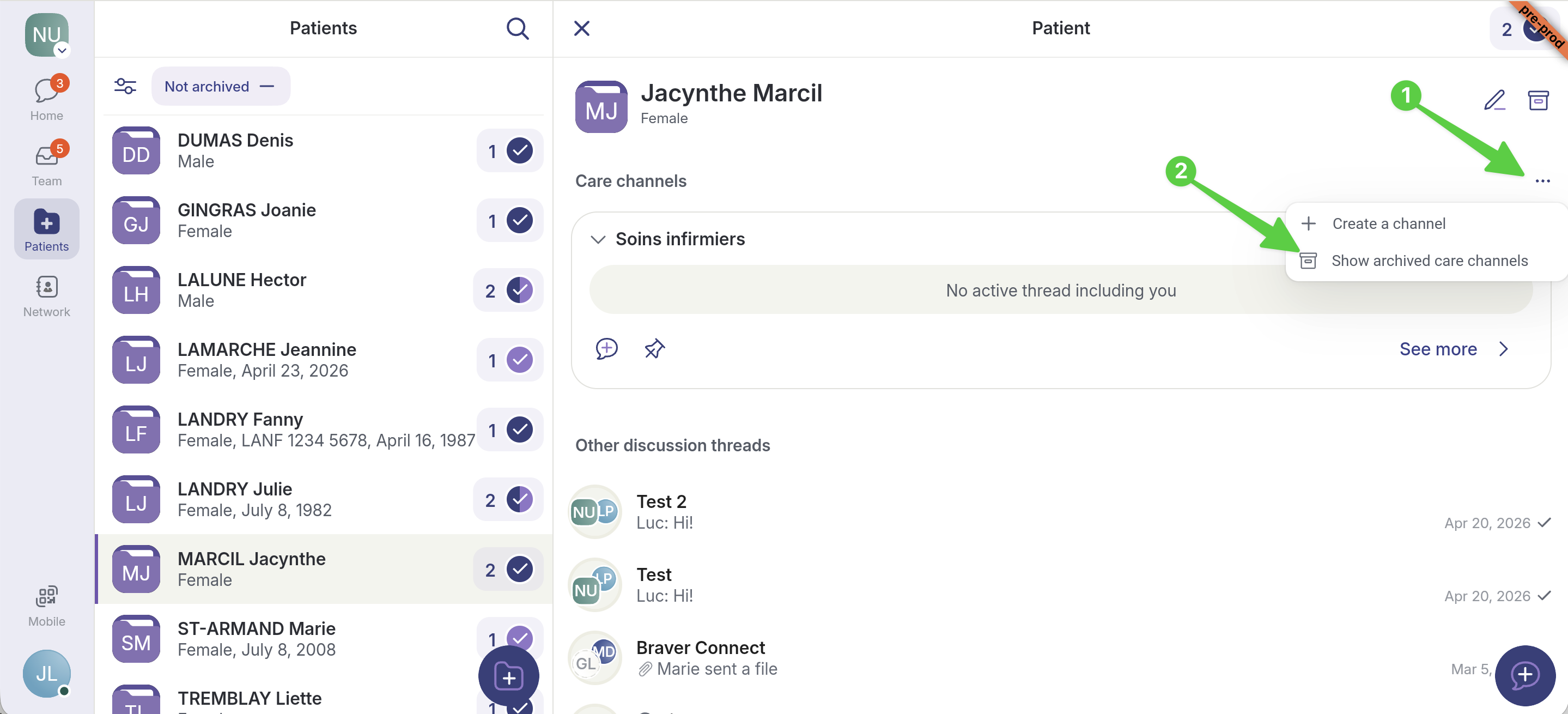
You can always access an archived care channel by clicking here. Parents can also access archived care channels in their app.
{% endhint %}
{% stepper %}
{% step %}
**In the patient file, identify the care channel and select *****See more*****.**
{% endstep %}
{% step %}
**Click on the box next to the title of the care channel.**
{% endstep %}
{% step %}
**Select OK.**
{% endstep %}
{% endstepper %}
***
## In the Admin App
### Remove access for professionals who have left
{% stepper %}
{% step %}
**In the admin app, open the *****Teams***** page.**
{% endstep %}
{% step %}
**1) Select the *****Members***** page, then clear 2) *****Participant***** and 3) *****Triaging***** for the person you wish to remove.**
{% endstep %}
{% step %}
**Confirm here.**
{% endstep %}
{% step %}
**1) Select the *****Users***** page. 2) Select the three dots next to the person's name.**
{% endstep %}
{% step %}
**Select *****Remove the user from the organizational unit*****.**
{% endstep %}
{% step %}
**1) Enter the required text, then 2) click *****Delete permanently*****.**
{% endstep %}
{% endstepper %}
***
### Add new professionals
{% stepper %}
{% step %}
**Select the *****Users***** page, then click on *****Add User*****.**
{% endstep %}
{% step %}
**Complete the *****User Information*****.**
{% endstep %}
{% step %}
**Add the new user to the appropriate team by selecting *****Participant***** next to the team. IMPORTANT: Do not activate *****Triaging.***
{% endstep %}
{% step %}
**Assign the *****Care Giver Manager***** role.**
{% endstep %}
{% step %}
**Click on *****Send invite*****.**
{% endstep %}
{% endstepper %}
---
# Agent Instructions
This documentation is published with GitBook. GitBook is the documentation platform designed so that both humans and AI agents can read, navigate, and reason over technical content effectively. Learn more at gitbook.com.
## Querying This Documentation
If you need additional information that is not directly available in this page, you can query the documentation dynamically by asking a question.
Perform an HTTP GET request on the current page URL with the `ask` query parameter, and the optional `goal` query parameter:
```
GET https://support.braver.net/guides/pages-privees/therapy-transfer-mackay-and-pel-admin.md?ask=&goal=
```
`ask` is the immediate question: it should be specific, self-contained, and written in natural language.
`goal` is optional and describes the broader end goal you are ultimately trying to accomplish on behalf of the user. GitBook uses it to tailor the answer towards what is most useful for that goal.
The response will contain a direct answer to the question and relevant excerpts and sources from the documentation.
Use this mechanism when the answer is not explicitly present in the current page, you need clarification or additional context, or you want to retrieve related documentation sections.