> For the complete documentation index, see [llms.txt](https://support.braver.net/llms.txt). Markdown versions of documentation pages are available by appending `.md` to page URLs; this page is available as [Markdown](https://support.braver.net/guides/pour-les-professionnels/gestion-des-notifications/regler-sa-periode-dindisponibilite.md).
# Régler sa période d'indisponibilité
## Pas-à-pas
{% stepper %}
{% step %}
**1) Accédez à votre profil via votre avatar en bas de l'écran, puis 2) cliquez sur votre nom.**
{% endstep %}
{% step %}
###
{% endstep %}
{% step %}
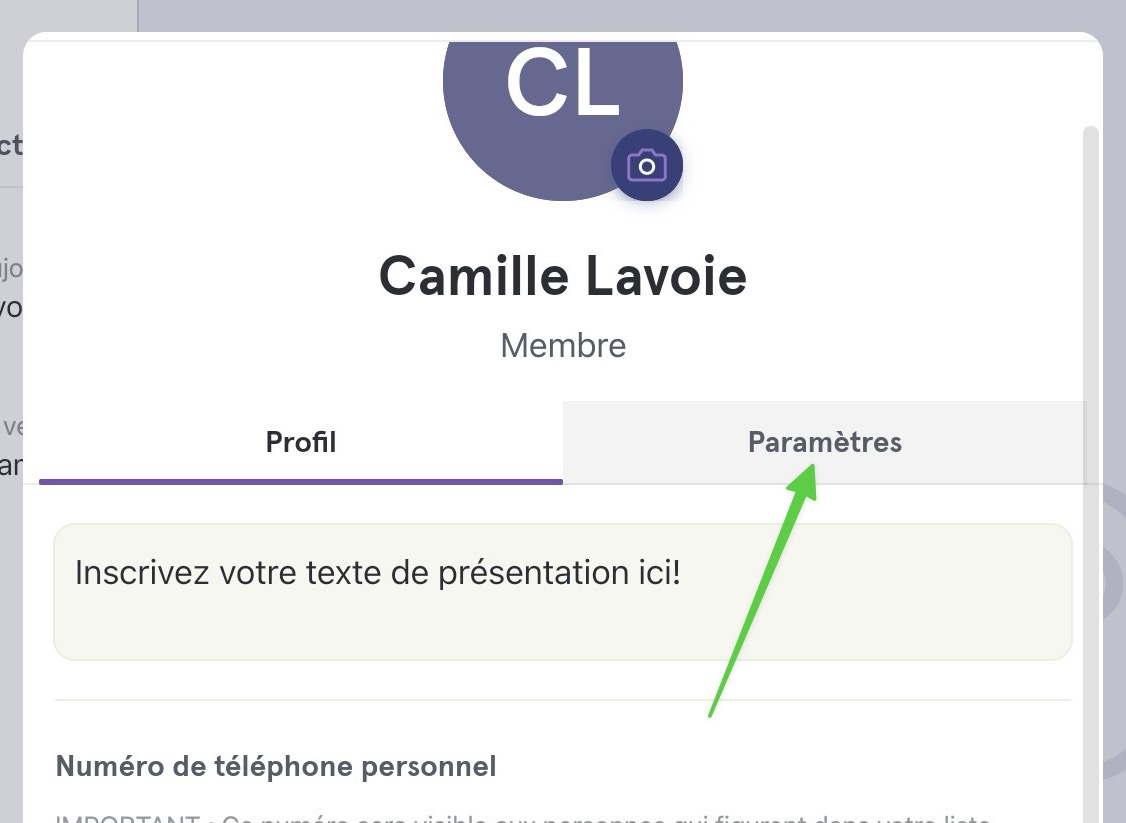
**Cliquez sur l'onglet *****Paramètres*****.**
{% endstep %}
{% step %}
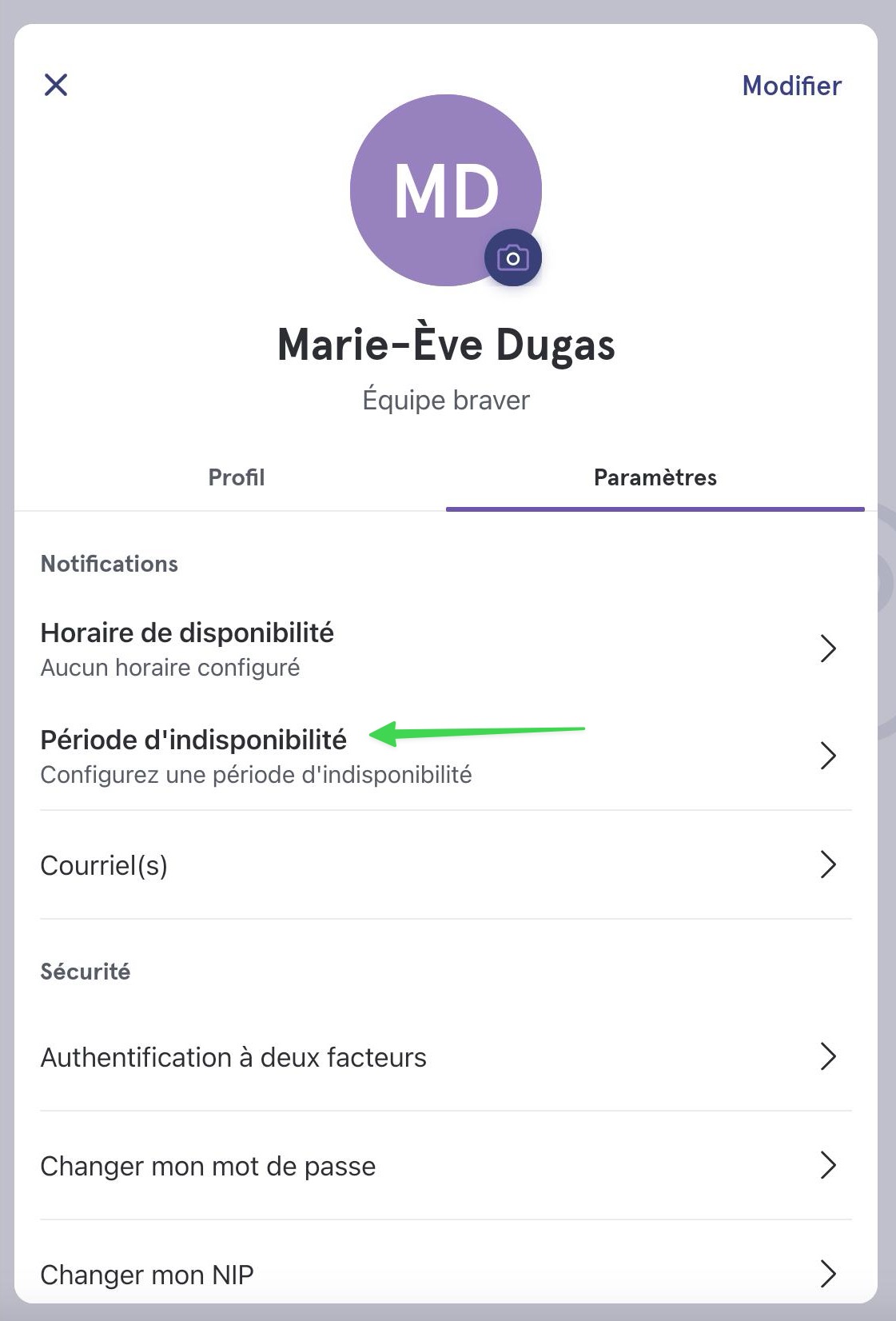
**Sélectionnez *****Période d'indisponibilité*****, où vous pourrez configurer une période d'indisponibilité afin de ne pas être notifié. Cela laissera également une trace claire pour les utilisateurs souhaitant vous rejoindre.**
{% endstep %}
{% step %}
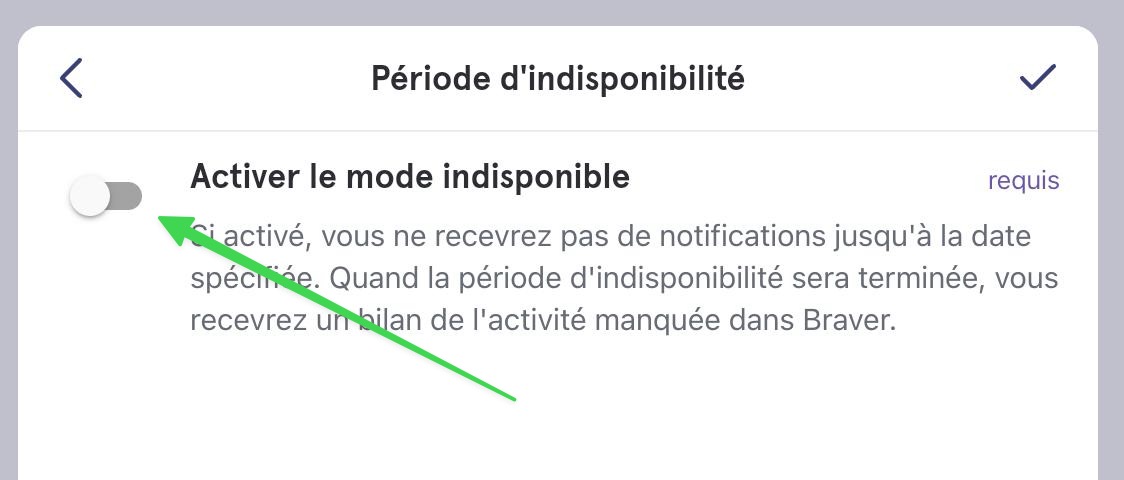
**Activez le mode indisponible grâce à l'interrupteur.**
{% endstep %}
{% step %}
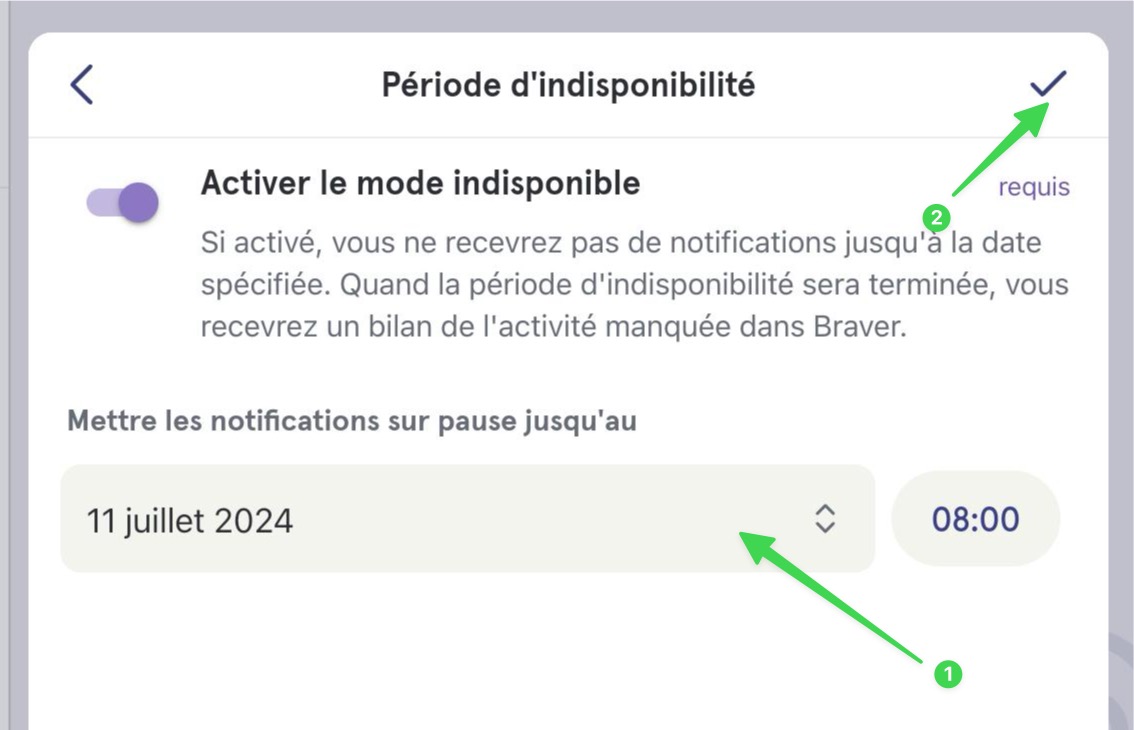
**1) Indiquez la date et l'heure de votre retour au travail, puis 2) Sélectionnez le crochet en haut à droite pour enregistrer votre choix.**
{% endstep %}
{% endstepper %}
{% hint style="info" %}
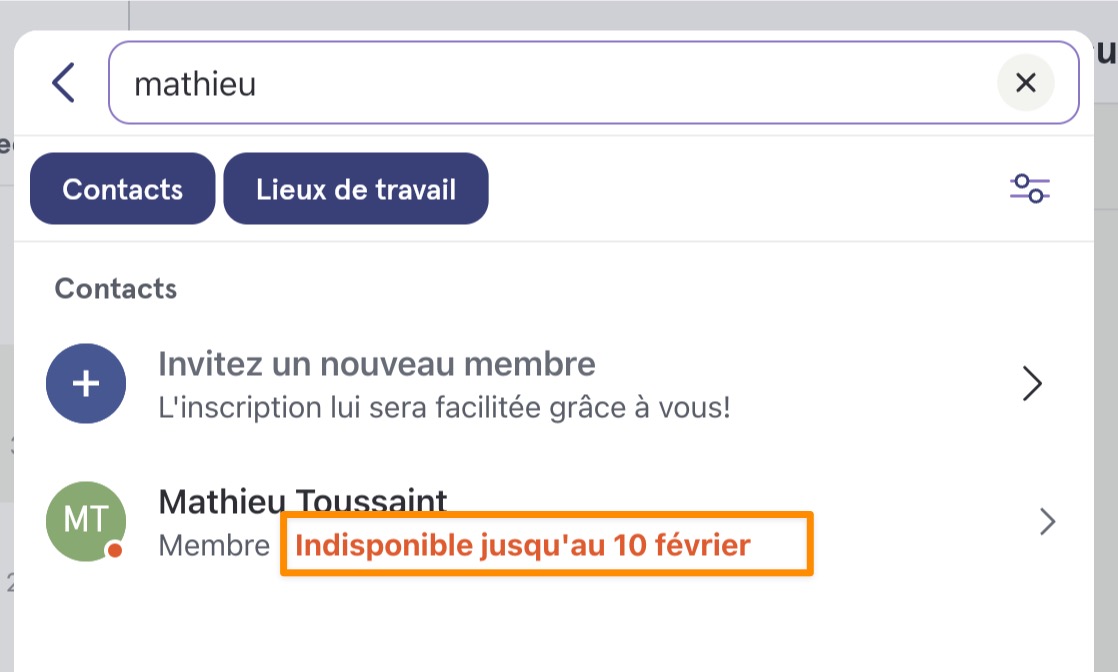
**Si quelqu'un souhaite vous inviter dans une discussion, il verra clairement que vous êtes indisponible.**
{% endhint %}
---
# Agent Instructions
This documentation is published with GitBook. GitBook is the documentation platform designed so that both humans and AI agents can read, navigate, and reason over technical content effectively. Learn more at gitbook.com.
## Querying This Documentation
If you need additional information that is not directly available in this page, you can query the documentation dynamically by asking a question.
Perform an HTTP GET request on the current page URL with the `ask` query parameter, and the optional `goal` query parameter:
```
GET https://support.braver.net/guides/pour-les-professionnels/gestion-des-notifications/regler-sa-periode-dindisponibilite.md?ask=&goal=
```
`ask` is the immediate question: it should be specific, self-contained, and written in natural language.
`goal` is optional and describes the broader end goal you are ultimately trying to accomplish on behalf of the user. GitBook uses it to tailor the answer towards what is most useful for that goal.
The response will contain a direct answer to the question and relevant excerpts and sources from the documentation.
Use this mechanism when the answer is not explicitly present in the current page, you need clarification or additional context, or you want to retrieve related documentation sections.