
How to Search in Audit Logs?
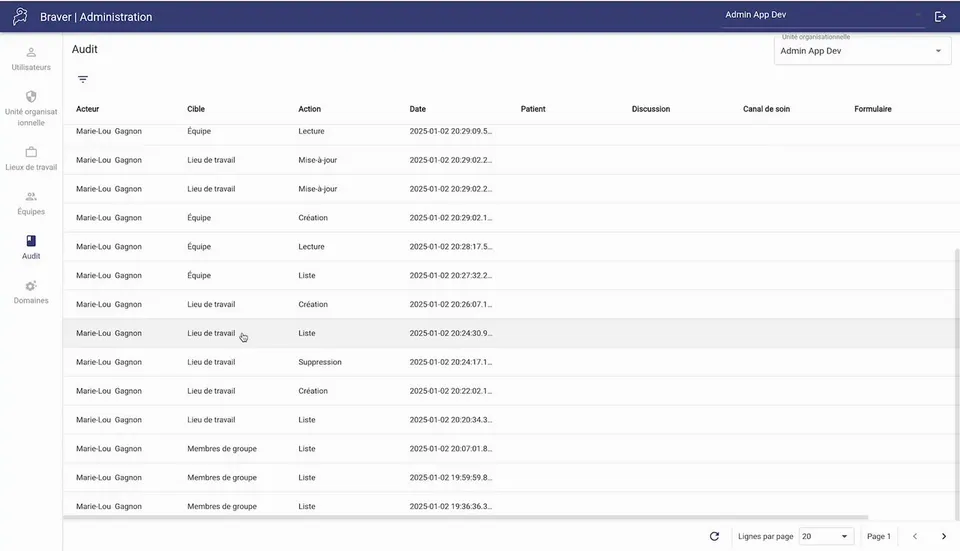
This page shows you how to search in the audit logs, either with a video or a step-by-step guide.
Step-by-Step
Section titled “Step-by-Step”-
Click on the corresponding item in the left menu
Section titled “Click on the corresponding item in the left menu”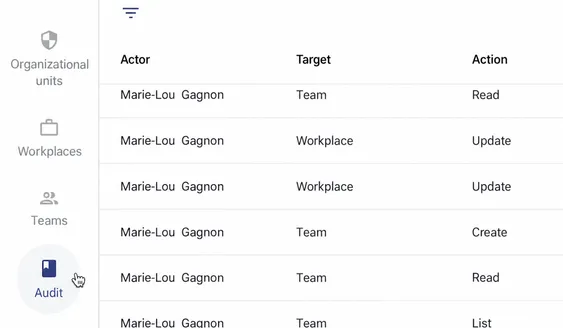
-
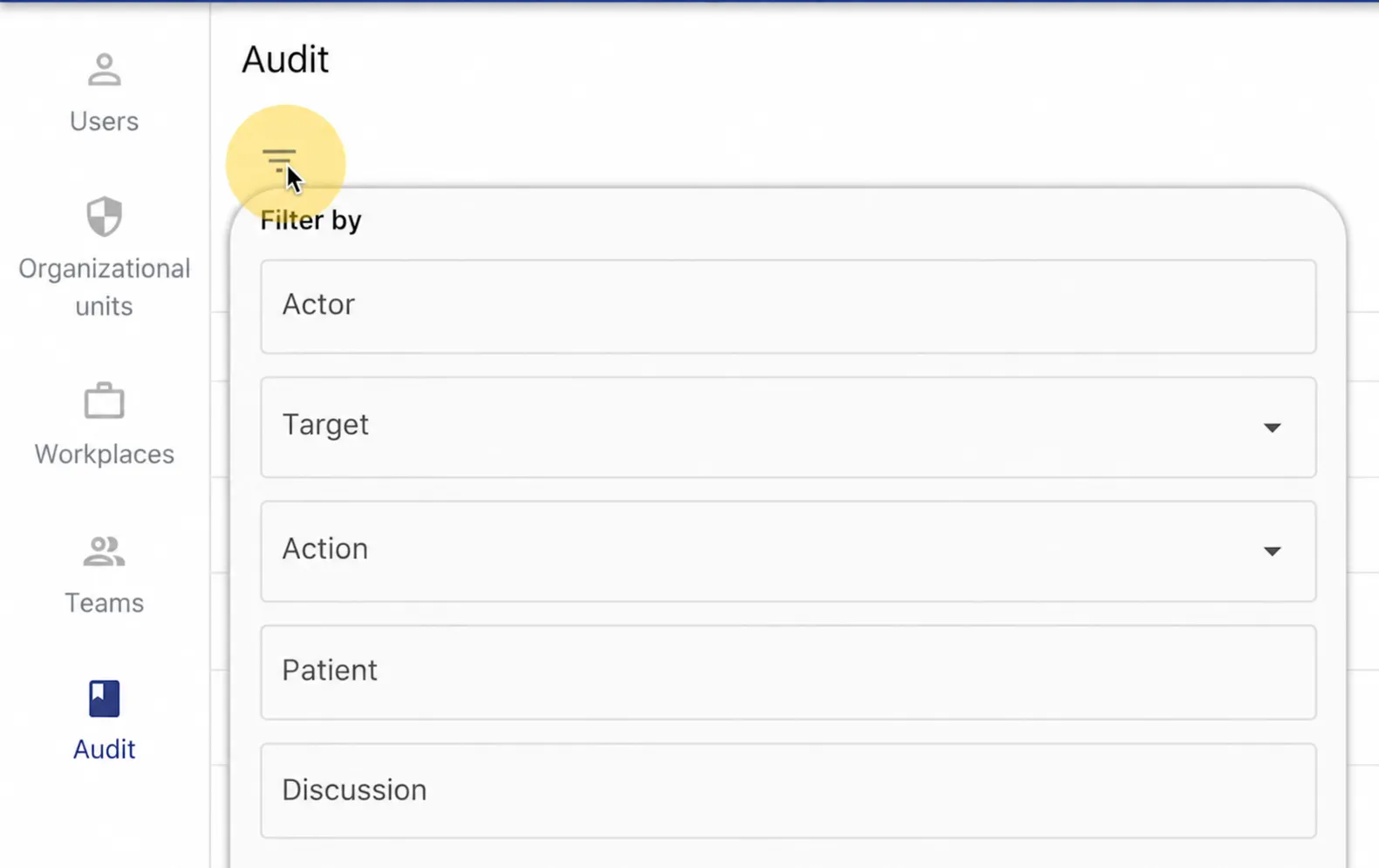
Click on the Filters icon and complete your search by filtering by
Section titled “Click on the Filters icon and complete your search by filtering by”- Actor (username)
- Target (patient record, discussion, etc.)
- Action (creation, writing, etc.)
- Patient (see next step to learn how to find the patient ID)
-
To search based on a patient, you must have the patient’s identifier. To obtain it, you need to log in to the clinician application from a computer and access the specific patient record
Section titled “To search based on a patient, you must have the patient’s identifier. To obtain it, you need to log in to the clinician application from a computer and access the specific patient record”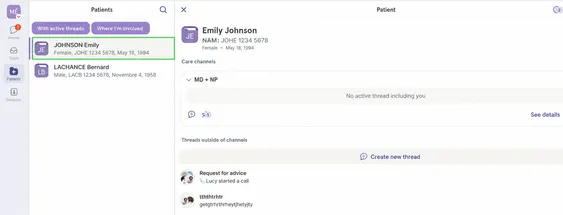
-
After accessing the specific patient record, you will find the patient identifier at the end of the URL in the navigation bar. Copy the patient identifier.
Section titled “After accessing the specific patient record, you will find the patient identifier at the end of the URL in the navigation bar. Copy the patient identifier.”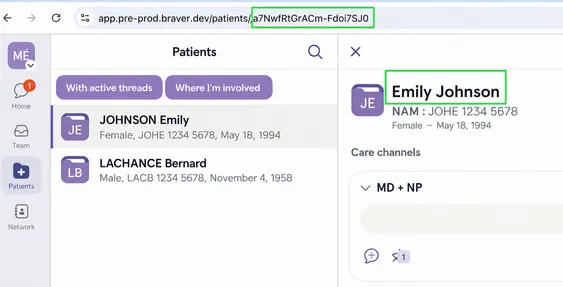
-
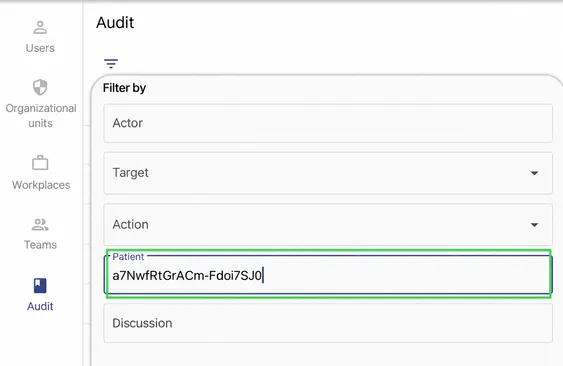
Paste the patient identifier in the “Patient” text box in the audit log filters.
Section titled “Paste the patient identifier in the “Patient” text box in the audit log filters.”