
Set Unavailability Period
Step by Step
Section titled “Step by Step”-
Start by navigating to your profile at the bottom of the screen.
Section titled “Start by navigating to your profile at the bottom of the screen.”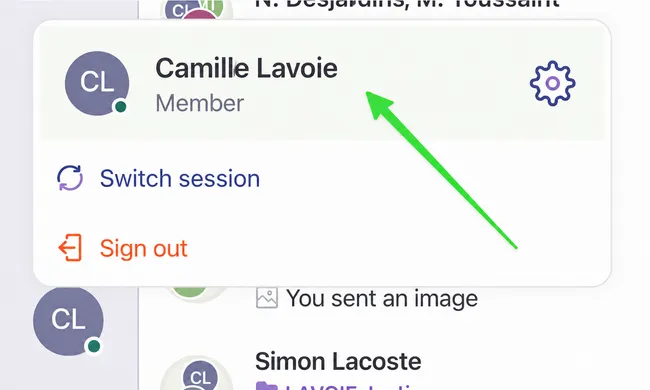
-
Click on the Settings tab.
Section titled “Click on the Settings tab.”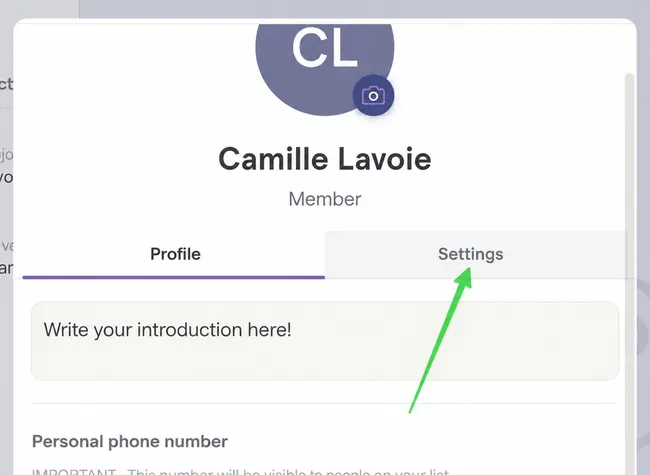
-
Select Unavailability Period, where you can configure a period of unavailability during which you will not be notified. This will also leave a clear trace for users who want to reach you.
Section titled “Select Unavailability Period, where you can configure a period of unavailability during which you will not be notified. This will also leave a clear trace for users who want to reach you.”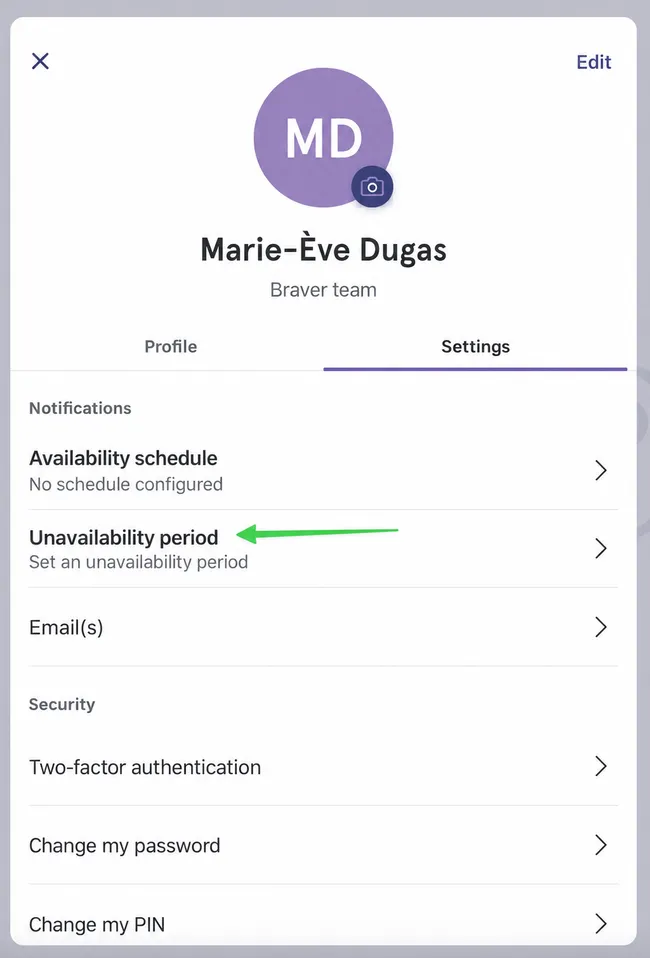
-
Activate unavailable mode using the switch.
Section titled “Activate unavailable mode using the switch.”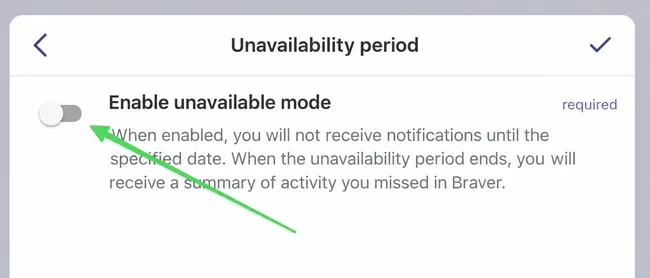
-
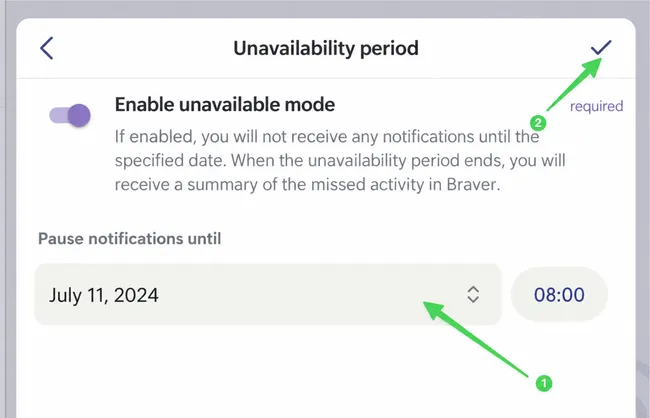
Indicate the date and time of your return to work.
Section titled “Indicate the date and time of your return to work.”Then select the checkmark at the top right to save your choice.
-
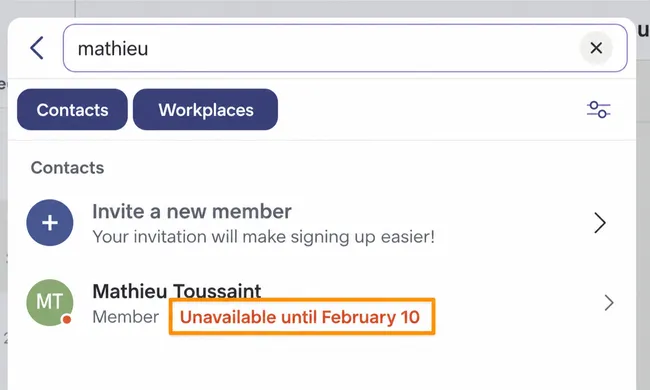
If someone wants to invite you to a discussion, they will clearly see that you are unavailable.
Section titled “If someone wants to invite you to a discussion, they will clearly see that you are unavailable.”