
Receive Two-Factor Authentication by SMS
Step-by-Step Guide
Section titled “Step-by-Step Guide”-
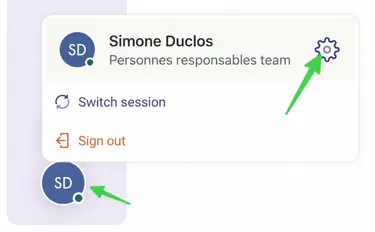
Start by navigating to your profile at the bottom of the screen.
-
Click on the Settings tab.
Section titled “Click on the Settings tab.”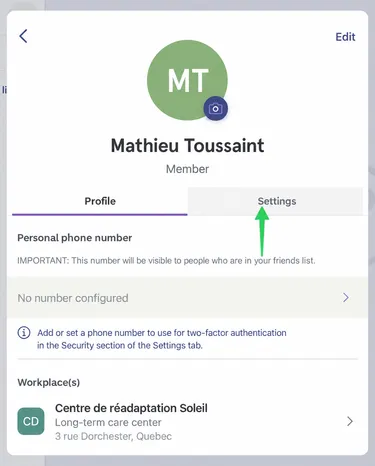
-
Under Security, select Two-Factor Authentication.
Section titled “Under Security, select Two-Factor Authentication.”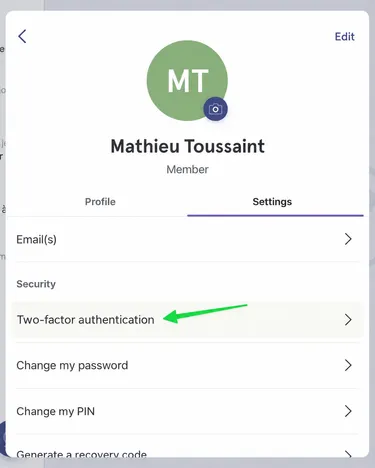
-
By default, your two-factor authentication is sent by email. If you want to receive it by SMS, select this option.
Section titled “By default, your two-factor authentication is sent by email. If you want to receive it by SMS, select this option.”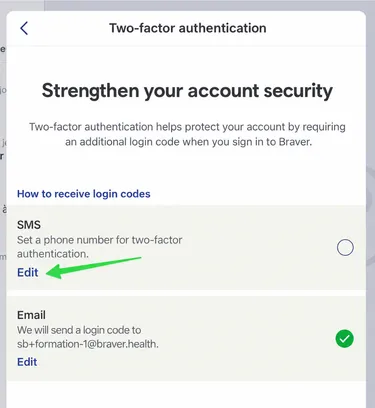
-
If you have no phone number associated with your account, select Add Phone Number.
Section titled “If you have no phone number associated with your account, select Add Phone Number.”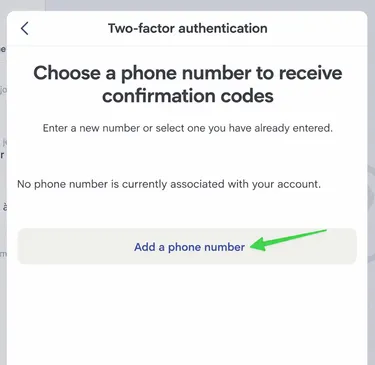
-
Enter your number and select Create.
Section titled “Enter your number and select Create.”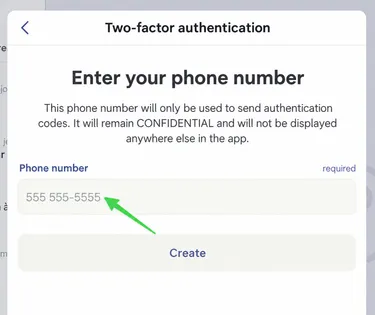
-
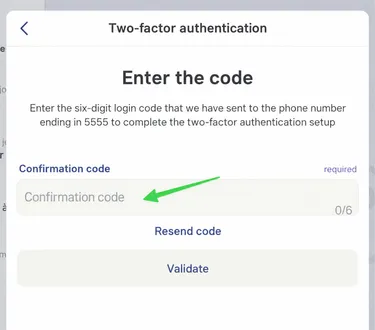
You will then receive a 6-digit confirmation code. Enter it in the appropriate field, then click Validate.
Section titled “You will then receive a 6-digit confirmation code. Enter it in the appropriate field, then click Validate.”