

Configure a Trajectory's Actors
Add actors to a trajectory and set up their Information, User and Team tabs.
Actors determine who can take part in a care channel and under what conditions. An actor can be an individual user, a team, or both.
You must first have created the trajectory.
Create an Actor
Section titled “Create an Actor”-
In the trajectory, select Actors, then click Add actor.
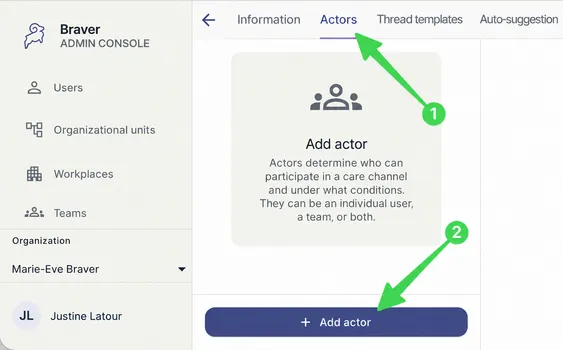
-
Name the actor, then click Add actor.
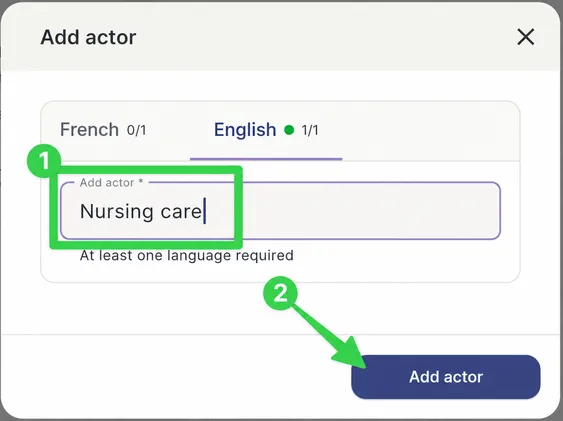
The actor is then configured in three tabs: Information, User and Team.
Information Tab
Section titled “Information Tab”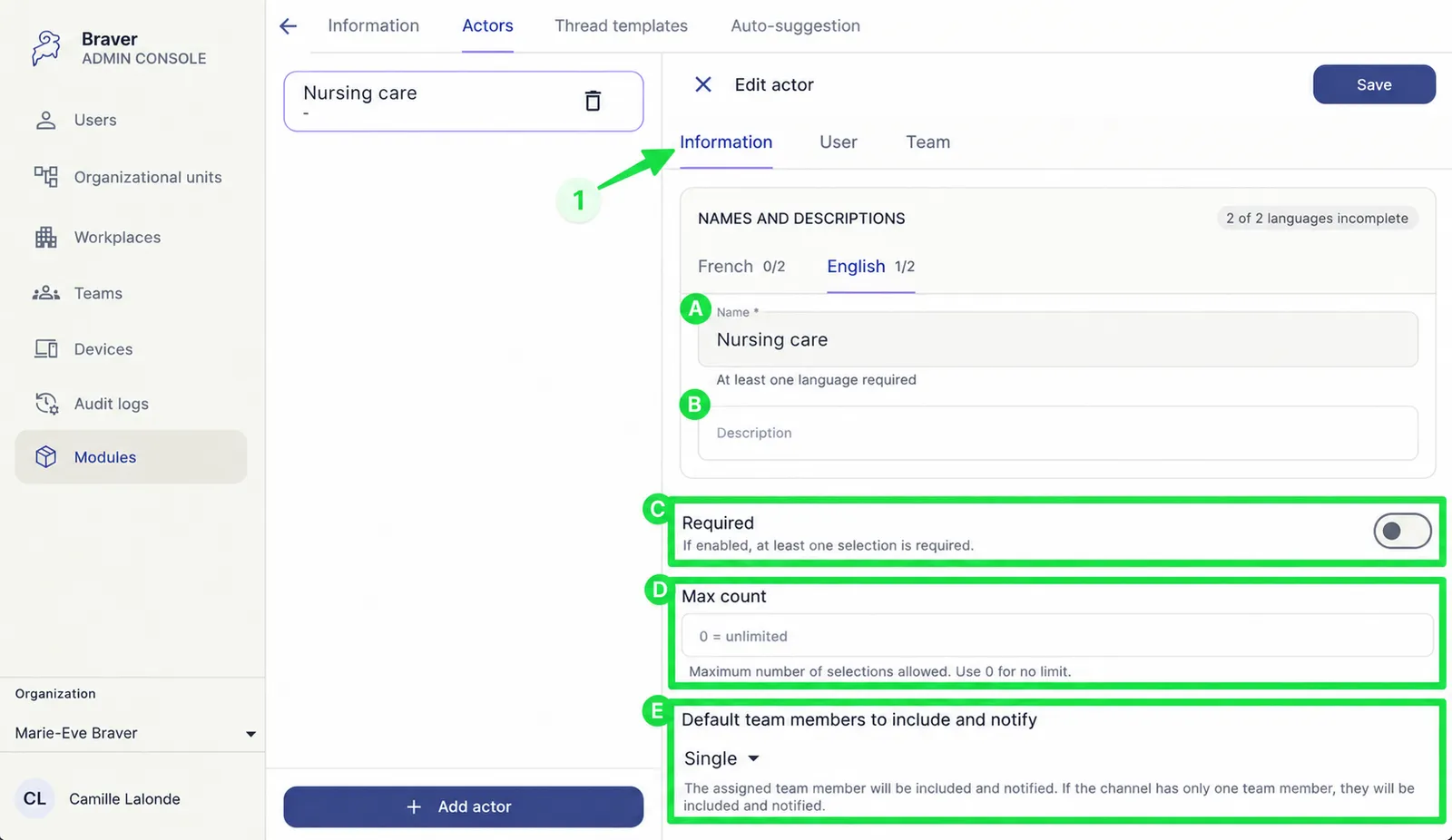
| Marker | Option | Description |
|---|---|---|
| A | Name | The actor’s name. |
| B | Description | Shown under the actor’s name in the left menu. |
| C | Required | Turn on the switch so that at least one selection is required for this actor. |
| D | Max count | The maximum number of selections allowed for this actor. Use 0 for no limit. |
| E | Default team members to include and notify | The team members included and notified in discussion threads (see below). |
Default Team Members to Include and Notify
Section titled “Default Team Members to Include and Notify”| Option | Who is included and notified |
|---|---|
| Single | The assigned team member. If the channel has only one team member, that person is included and notified. |
| All | All team members who take part in the channel, whether or not they are assigned. |
| None | No team members. The thread is sent to the team’s triage inbox. |
User Tab
Section titled “User Tab”Use this tab so the actor is chosen from specific users.
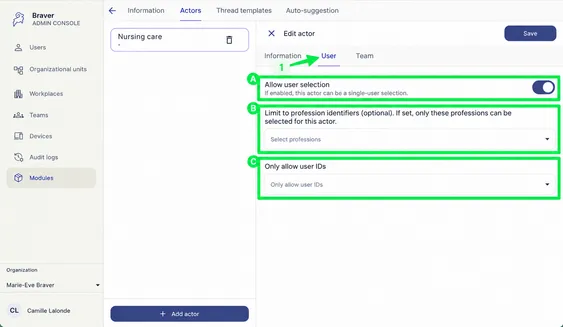
| Marker | Option | Description |
|---|---|---|
| A | Allow user selection | Turn on the switch so this actor can be a single-user selection (rather than a team, for example). |
| B | Limit to profession identifiers (optional) | If set, only users with the listed professions can be selected for this actor. |
| C | Only allow user IDs | Restrict the choices to the listed users. |
Team Tab
Section titled “Team Tab”Use this tab so the actor is a team.
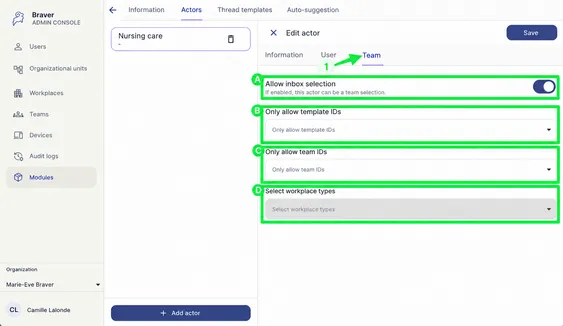
| Marker | Option | Description |
|---|---|---|
| A | Allow inbox selection | Turn on the switch so this actor can be a team selection (rather than a user, for example). |
| B | Only allow template IDs | Restrict the choices to the listed team templates. |
| C | Only allow team IDs | Restrict the choices to the listed teams. |
| D | Select workplace types | Restrict the choices to the selected workplace types. |