

Add a Workplace to My Profile
Add a Workplace to My Profile
Section titled “Add a Workplace to My Profile”-
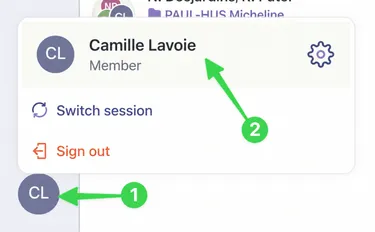
1) Open your profile from your avatar at the bottom of the screen, then 2) click your name.
-
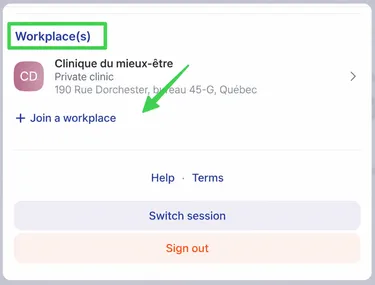
Scroll to the bottom of the page and click Join a workplace.
-
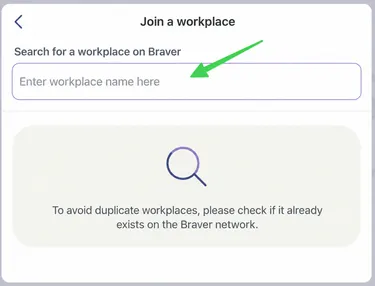
Use the search bar to find your workplace.
-
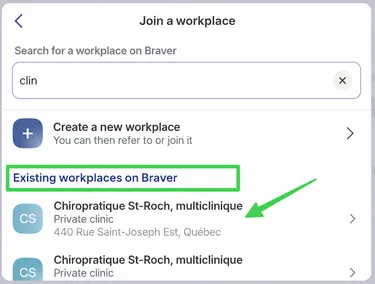
Does your workplace already exist in Braver? Select it as in the example. Otherwise, see the Create a New Workplace in the Braver Network section to continue.
-
Then click Join.
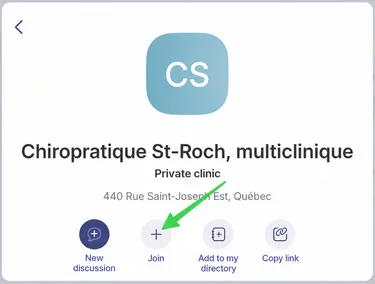
-
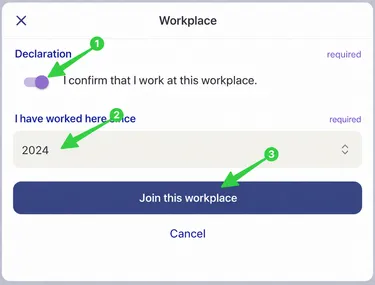
1) Confirm that you work at this location, 2) enter the start date and click Join this workplace.
-
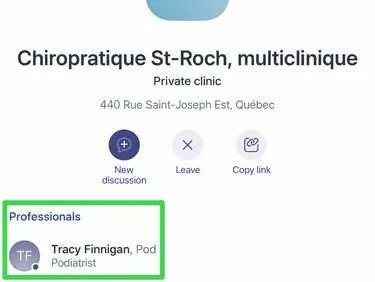
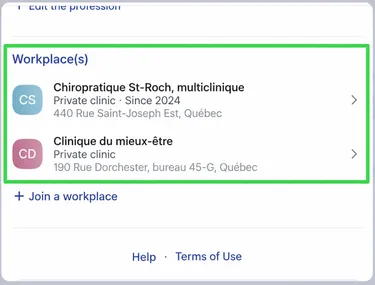
You now appear in the list of professionals who work at this location.
Create a New Workplace in the Braver Network
Section titled “Create a New Workplace in the Braver Network”-
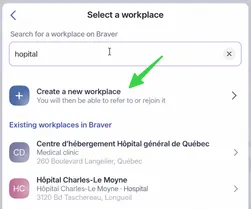
If the workplace hasn’t been created in Braver yet, click Create a new workplace.
-
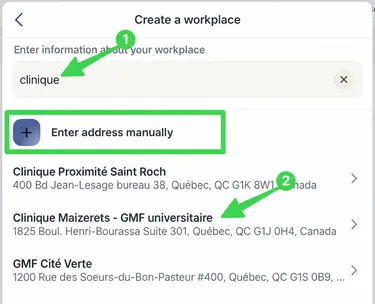
1) Type the workplace you want to create in the search box at the top of the page. One or more Google Maps suggestions appear in the menu under the search bar. 2) Select the right one.
-
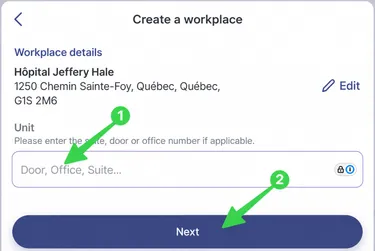
You can 1) add a unit if needed, then 2) click Next.
-
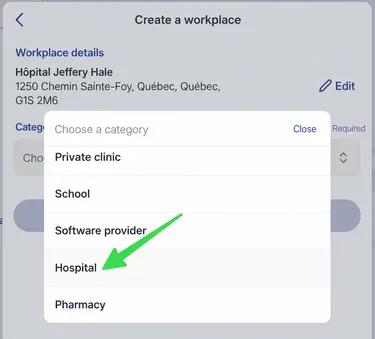
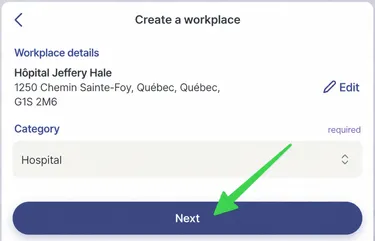
Select a category from the drop-down menu.
-
Click Next.
-
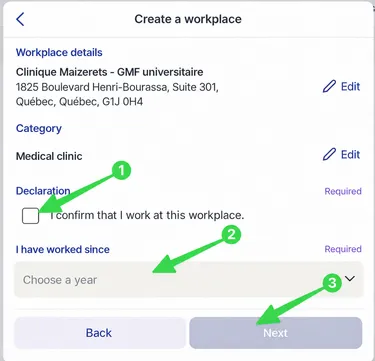
1) Confirm that you work at this location, 2) enter the start date and 3) click Next.
-
You now appear in the list of professionals who work at this location.