
Add or Change Your Email
-
Click your profile avatar.
Section titled “Click your profile avatar.”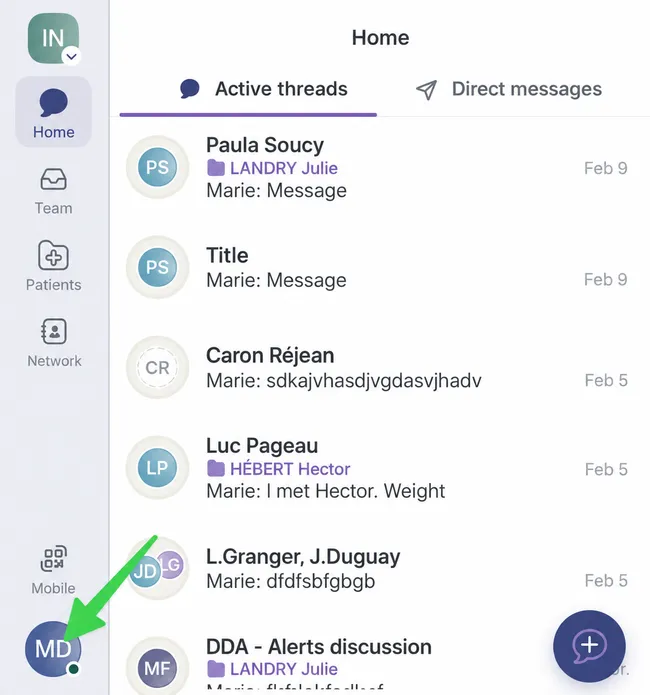
-
Click your name.
Section titled “Click your name.”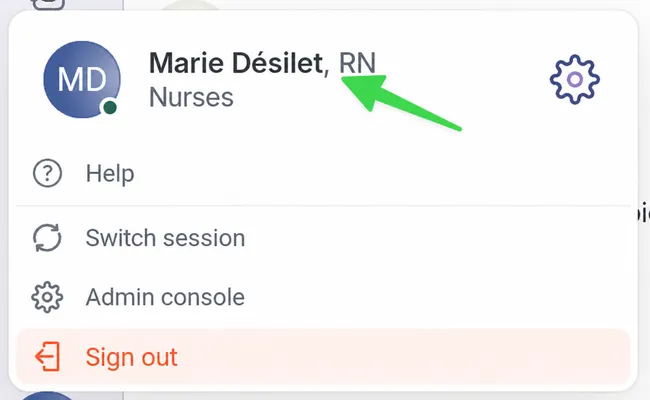
-
Select the Settings tab.
Section titled “Select the Settings tab.”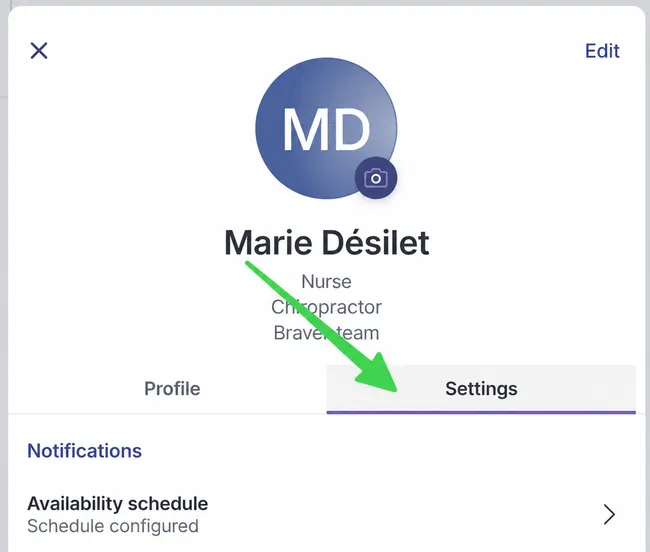
-
Under Communications, click Email(s).
Section titled “Under Communications, click Email(s).”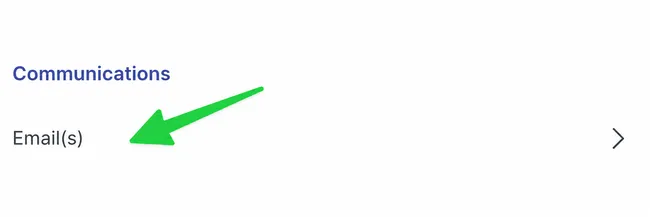
-
Click Add.
Section titled “Click Add.”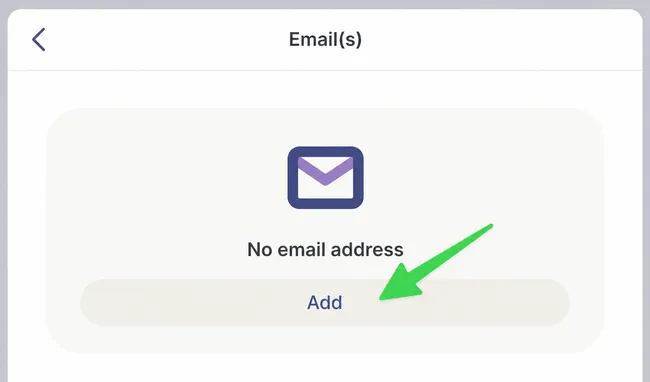
-
Enter your email, then click Add this email.
Section titled “Enter your email, then click Add this email.”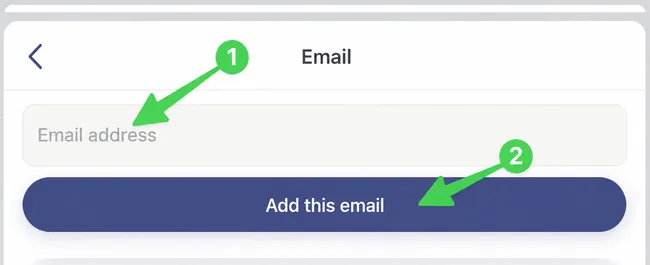
-
A validation code is sent to your email. Open your inbox and look for an email titled Braver | Security code for new email address.
Section titled “A validation code is sent to your email. Open your inbox and look for an email titled Braver | Security code for new email address.”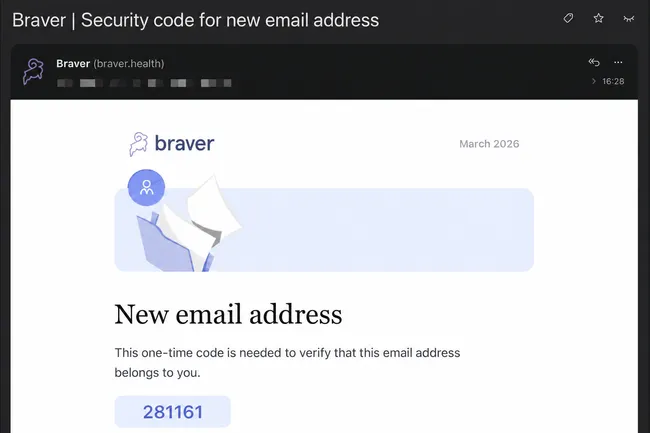
-
Copy the security code from the email.
Section titled “Copy the security code from the email.”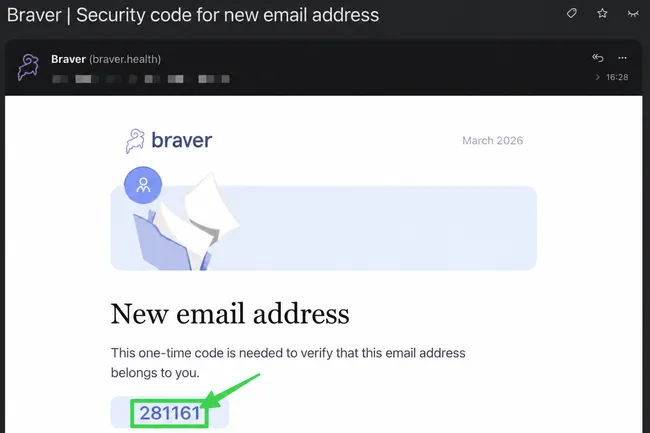
-
Go back to the add email page and paste the code in the field provided.
Section titled “Go back to the add email page and paste the code in the field provided.”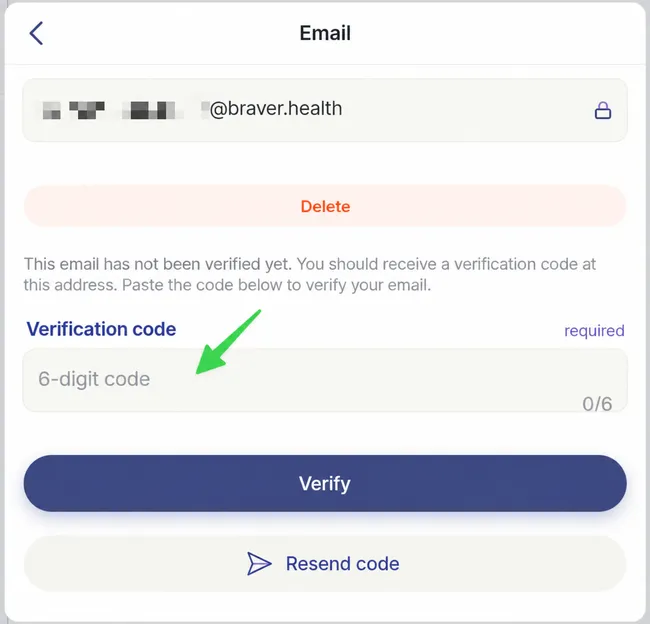
-
Click Validate to finish adding the email.
Section titled “Click Validate to finish adding the email.”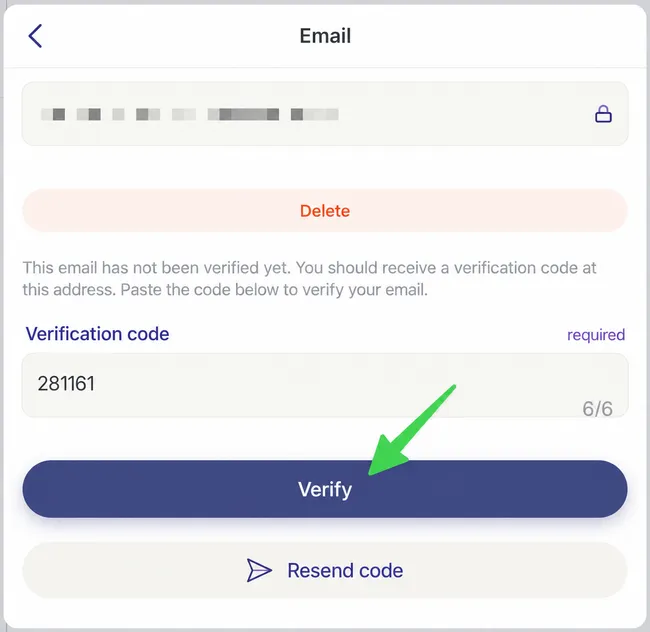
-
Click Set as main.
Section titled “Click Set as main.”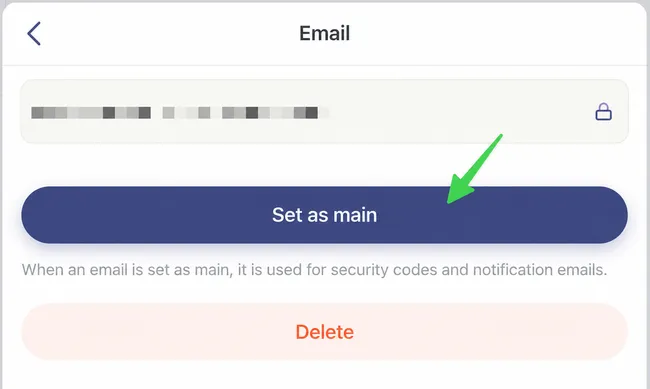
-
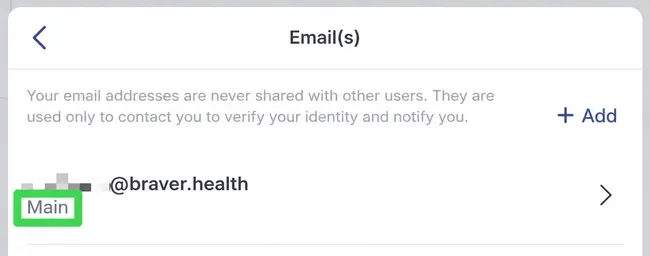
Your email now appears with the Main label.
Section titled “Your email now appears with the Main label.”