
Create Care Channel with Patient and Caregivers
Step by Step
Section titled “Step by Step”-
To create a care channel, click Create Channel.
Section titled “To create a care channel, click Create Channel.”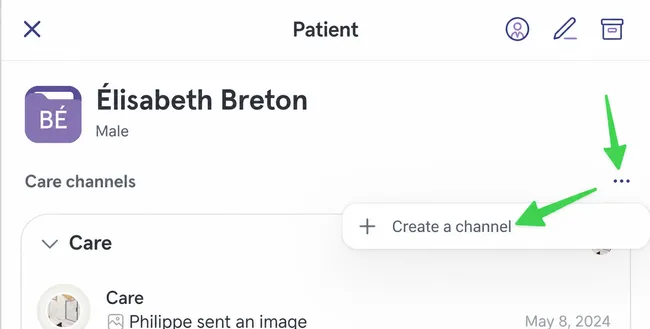
-
Give the channel a title.
Section titled “Give the channel a title.”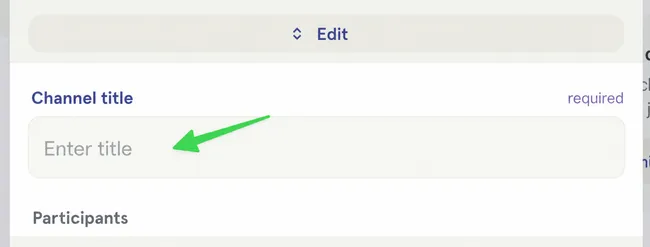
-
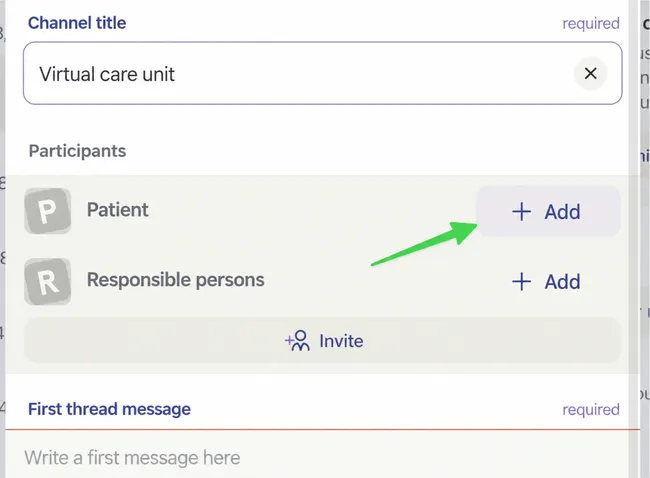
Once you have given your care channel a title, you can add participants to the channel.
Section titled “Once you have given your care channel a title, you can add participants to the channel.”These participants will have access to all discussions in the care channel.
In the example below, the patient is added to the channel. Responsible persons will also be added.
-
You can now invite other healthcare professionals by clicking Invite.
Section titled “You can now invite other healthcare professionals by clicking Invite.”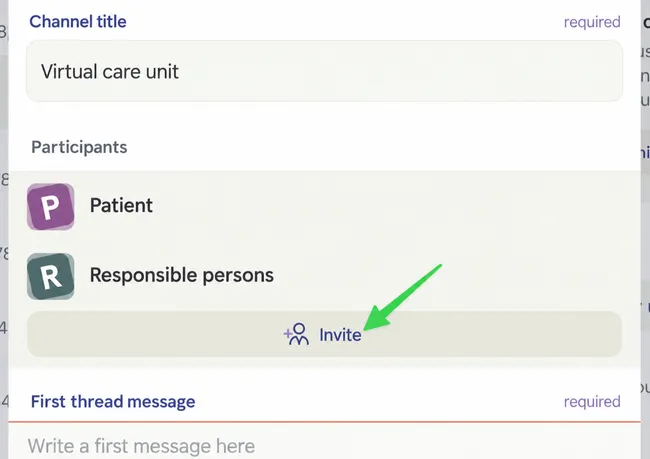
-
After writing your first message, click the paper airplane to send it.
Section titled “After writing your first message, click the paper airplane to send it.”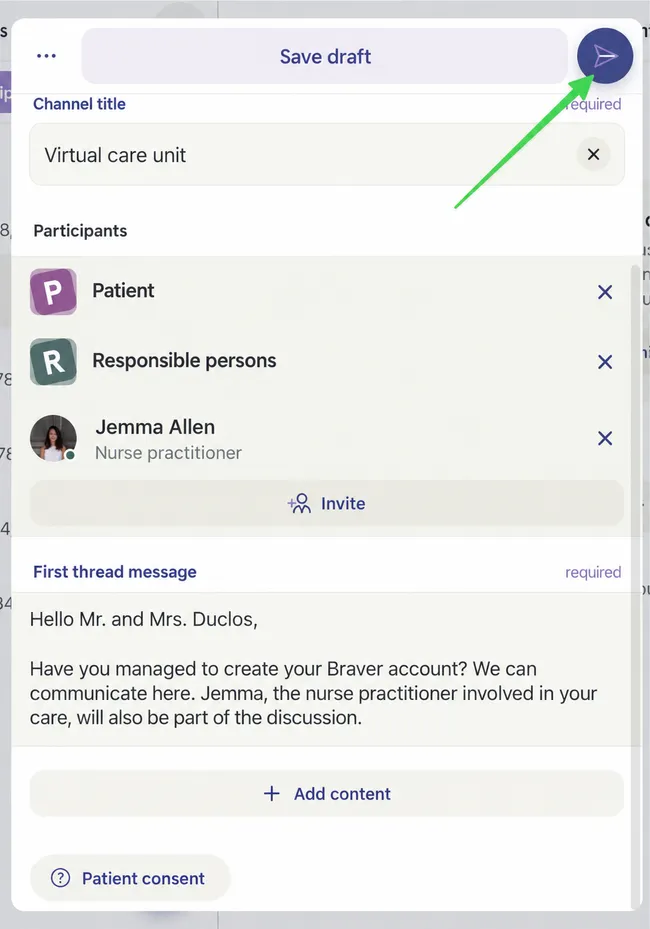
-
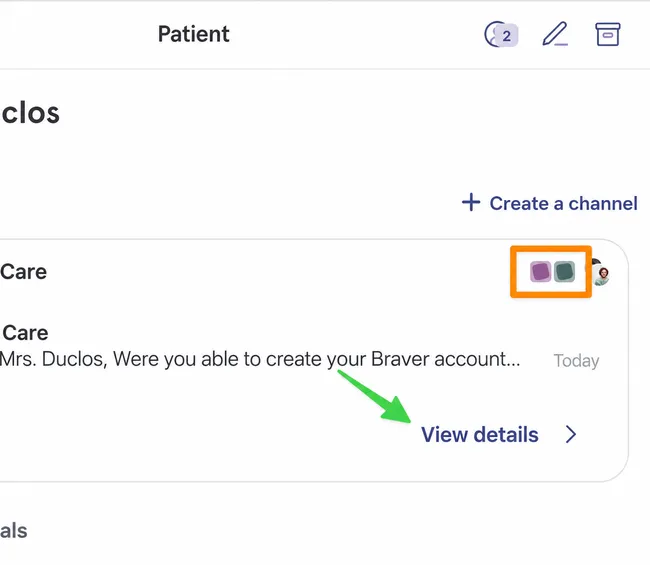
In the newly created care channel, you can see that a patient (pink square) and a responsible person (green square) participate in this care channel along with two clinicians.
Section titled “In the newly created care channel, you can see that a patient (pink square) and a responsible person (green square) participate in this care channel along with two clinicians.”To verify if the patient and responsible person have joined Braver, click View Details.
-
Then click on the participant avatars at the top right.
Section titled “Then click on the participant avatars at the top right.”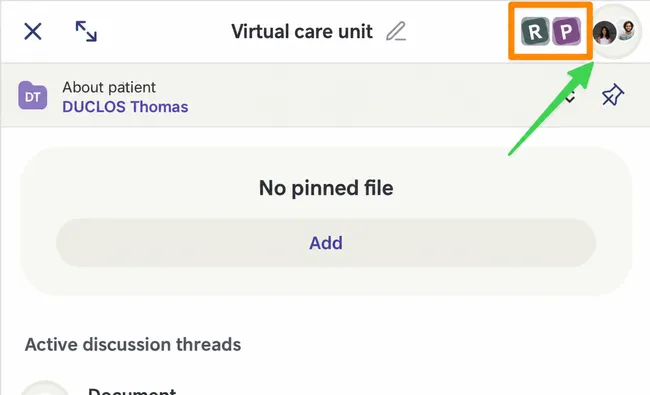
-
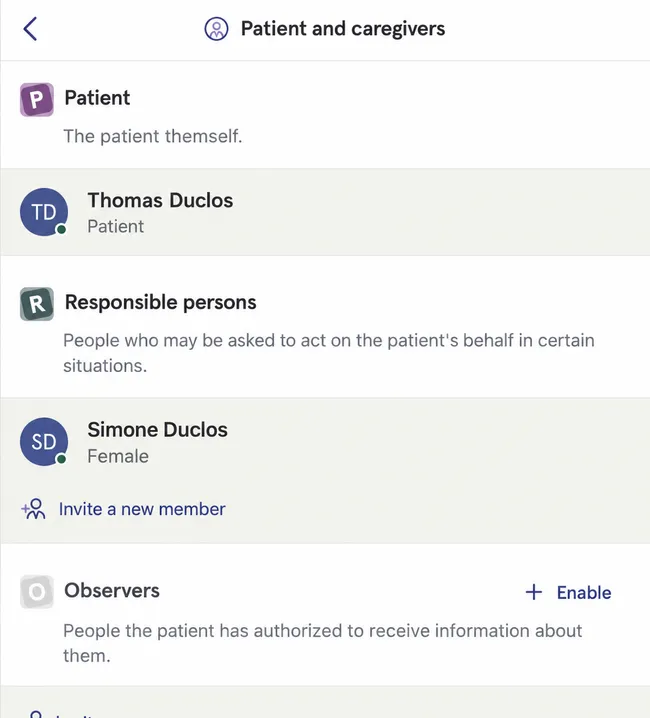
To see if patients and caregivers have joined Braver, click View Details near the title Patient and Caregivers.
Section titled “To see if patients and caregivers have joined Braver, click View Details near the title Patient and Caregivers.”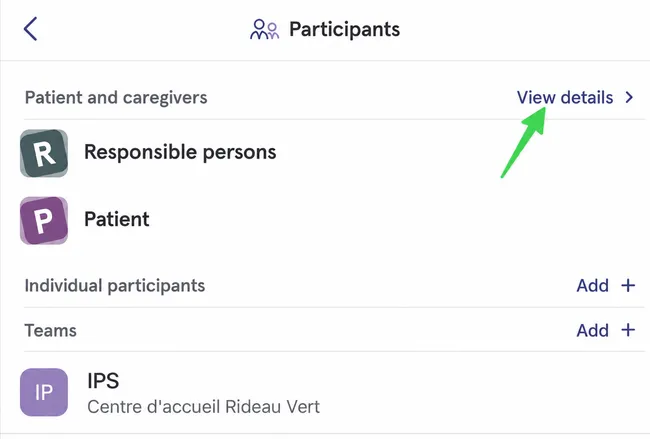
-
Here you can see that the patient is Thomas Duclos and the responsible person in his file is his wife, Mrs. Duclos. There is no envelope next to their names, which means they have activated their Braver account and can chat with you!
Section titled “Here you can see that the patient is Thomas Duclos and the responsible person in his file is his wife, Mrs. Duclos. There is no envelope next to their names, which means they have activated their Braver account and can chat with you!”