

Add a File, Photo or Video to a Discussion Thread
For patients who use their own device with access without an account
Step-by-Step
Section titled “Step-by-Step”-
On a Computer
Section titled “On a Computer” -
On Mobile
Section titled “On Mobile”
On a Computer
Section titled “On a Computer”-
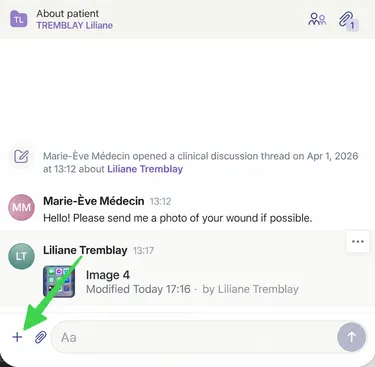
In the discussion thread with your care team, choose one of the following:
- Click the “+” symbol to add a photo, video or file.
- Click the paper clip icon to add a file. Go to step 3.
-
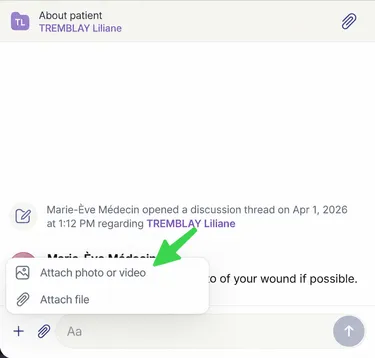
If you clicked “+”, choose one of the following:
- Click Attach photo or video to share a photo or video with your care team.
- Click Attach file to share an image or any other document in PDF, DOC or MP3 format with your care team.
-
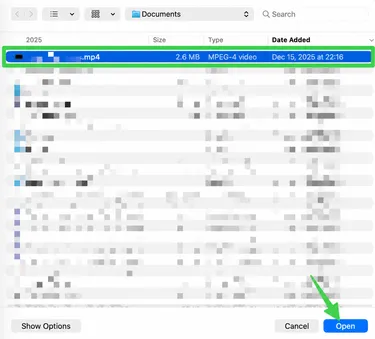
In your computer’s folders, select the item you want to share and click Open.
-
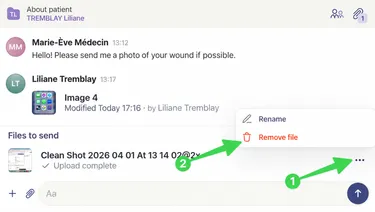
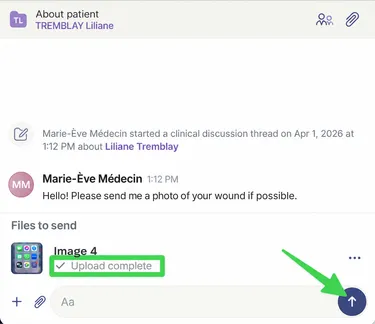
At this point, you can still remove the item before sending it:
- Click the three small dots to the right of the item.
- Click Remove file.
-
To finish, tap the purple arrow to send your attachment.
-
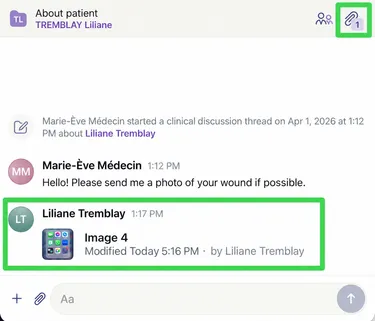
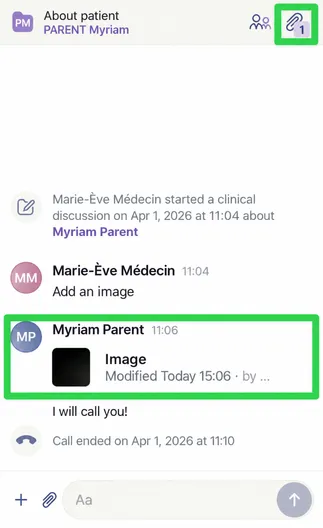
Your attachment has been sent!
Add an Attachment on Mobile
Section titled “Add an Attachment on Mobile ”-
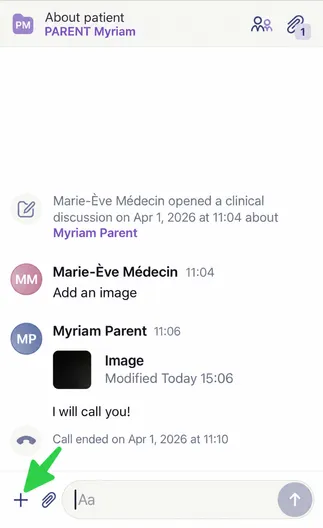
In the discussion thread with your care team:
- Tap the “+” symbol to add a photo, video or file.
- Tap the paper clip icon to add a file.
-
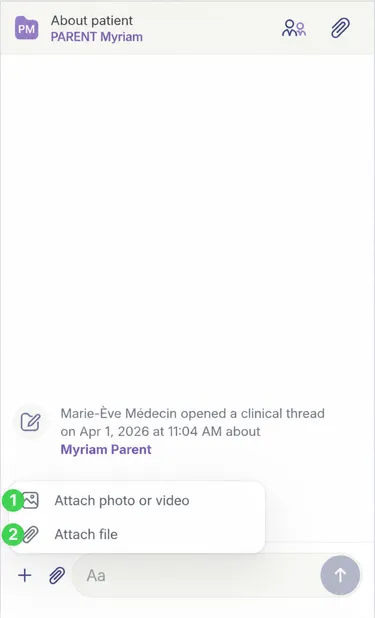
If you tapped “+”, choose one of the following:
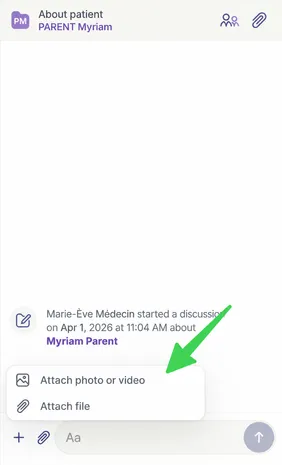
- Tap Attach photo or video to share a photo or video with your care team.
- Tap Attach file to share an image or any other document in PDF, DOC or MP3 format with your care team. Go to step 4.
-
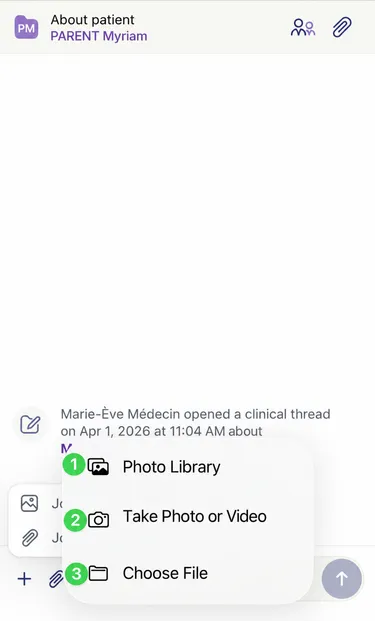
If you tapped Attach photo or video, choose one of the following:
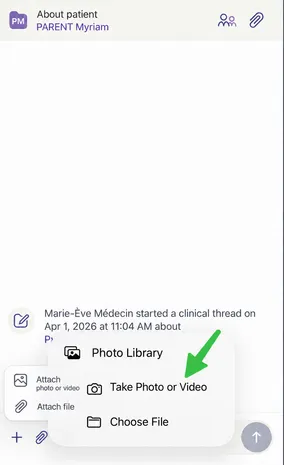
- Tap Photo Library to share a photo or video from your device’s camera roll with your care team.
- Tap Take Photo or Video to take the photo right away. Go to the Take a Photo or Video on Mobile section.
- Tap Choose File to share an image or any other document in PDF, DOC or MP3 format with your care team.
-
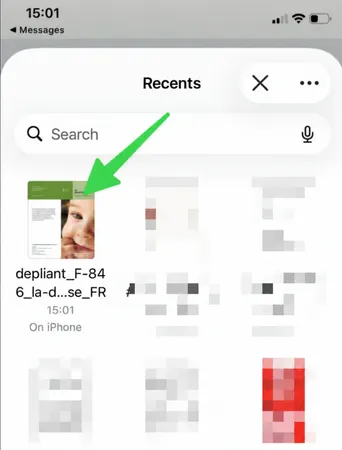
Select the item you want to share and tap Open.
-
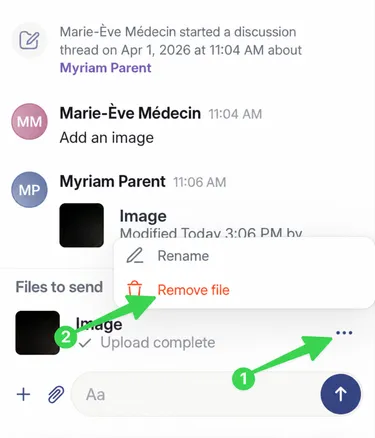
At this point, you can still remove the item before sending it:
- Tap the three small dots to the right of the item.
- Tap Remove file.
-
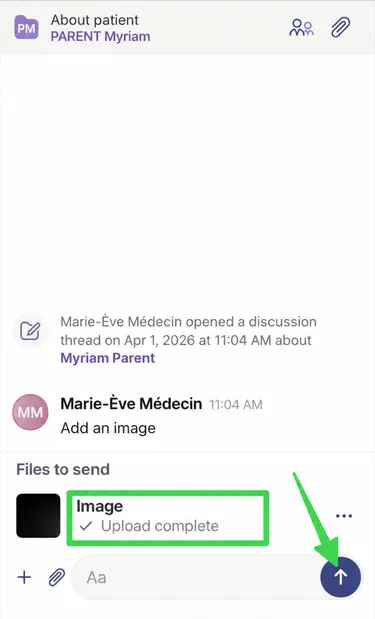
To finish, tap the purple arrow to send your attachment.
-
Your attachment has been sent!
Take a Photo or Video on Mobile
Section titled “Take a Photo or Video on Mobile”-
In the discussion thread with your care team, tap the “+” symbol.
-
Tap Attach photo or video to share a photo or video with your care team.
-
Tap Take Photo or Video.
-
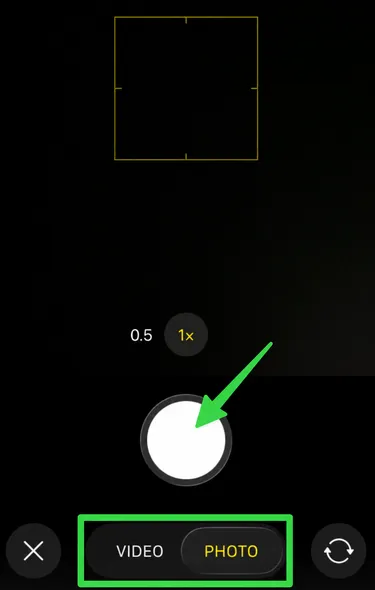
Your camera opens. Take your photo or video.
-
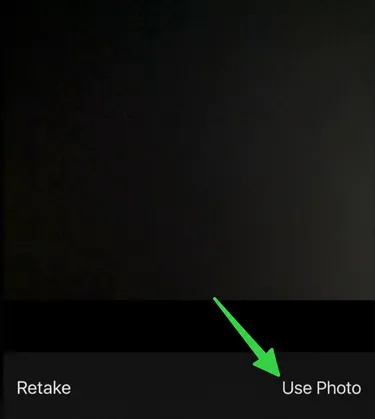
If you are happy with your photo, tap Use Photo. Otherwise, tap Retake to go back to step 4.
-
At this point, you can still remove the item before sending it:
- Tap the three small dots to the right of the item.
- Tap Remove file.
-
To finish, tap the purple arrow to send your photo or video.
-
Your photo or video has been sent!