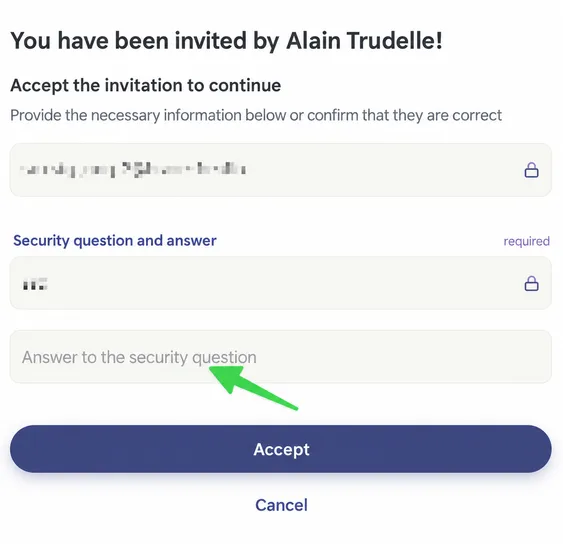

Accept Invitation
Step by Step
Section titled “Step by Step”-
In the email you received, click on the button inviting you to accept the invitation.
Section titled “In the email you received, click on the button inviting you to accept the invitation.” -
One of the following screens might be displayed
Section titled “One of the following screens might be displayed”-
If this is the first time you are opening Braver, and Braver has never been opened on your device, you will see a screen like the following:
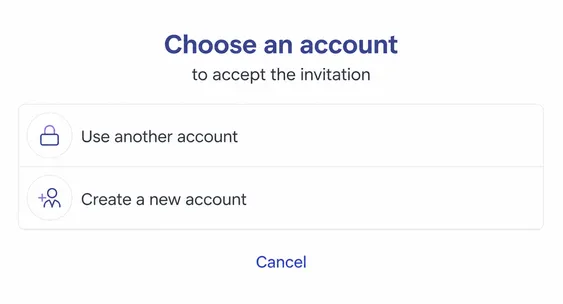
You can then choose the “Create a new account” option to continue to step 3, unless you have already created a Braver account in the past (in which case you should choose the other option, and you will directly go to step 4). -
If this is the first time you are opening Braver, but Braver has already been used by someone else on your device, you will see a screen like the following:
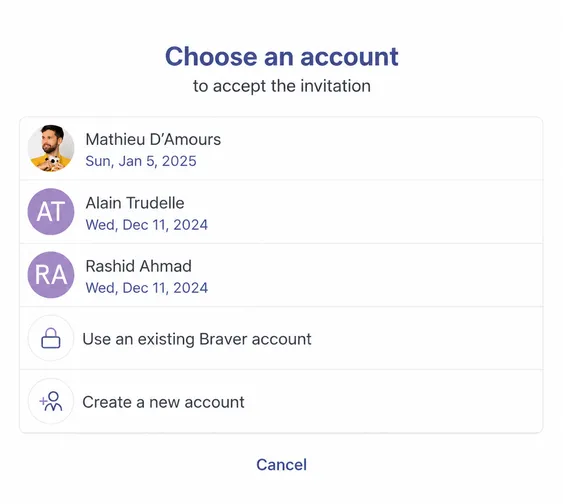
You can then choose the “Create a new account” option to continue to step 3, unless you have already created a Braver account in the past (in which case you should choose one of the other options, and you will directly go to step 4). -
If you have already created your account in the past with the same email address as the invitation, but your session is not already active on your device, you will see a screen like the following:
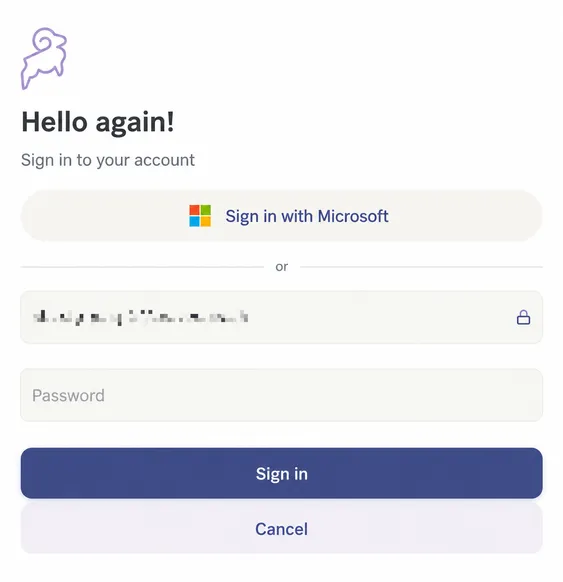
In this case, you should enter your password and in the next step, the security code you will receive by email or SMS, in order to proceed to step 4. -
If you have already created your account in the past with the same email address as the invitation, and your session is already active on your device, you will see a screen like the following:
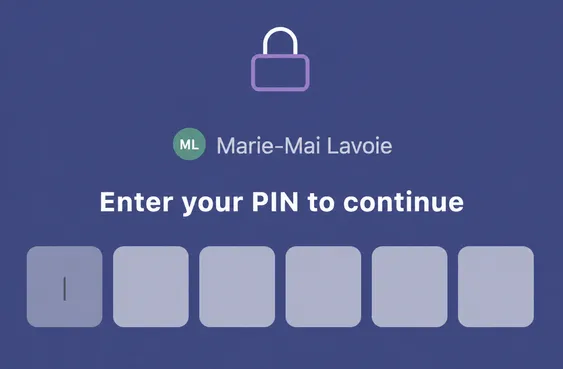
In this case, you should simply enter your PIN to proceed to step 4.
-
-
Follow the account creation steps
Section titled “Follow the account creation steps ”You can follow the tutorial for this purpose.
-
Enter the invitation secret code or answer the secret question
Section titled “Enter the invitation secret code or answer the secret question ”