
Receive Two-Factor Authentication by SMS
Step-by-Step
Section titled “Step-by-Step”-
Select the badge with your photo or initials to access your profile, then click on your name.
Section titled “Select the badge with your photo or initials to access your profile, then click on your name.”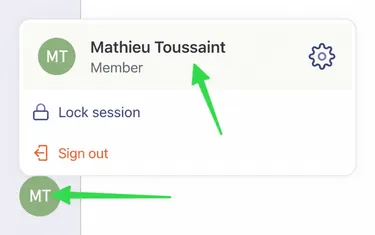
-
Click on the Settings tab.
Section titled “Click on the Settings tab.”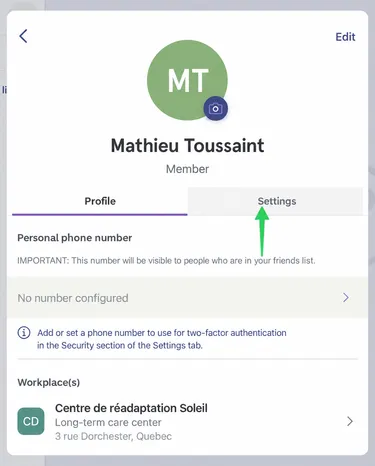
-
Under Security, select Two-Factor Authentication.
Section titled “Under Security, select Two-Factor Authentication.”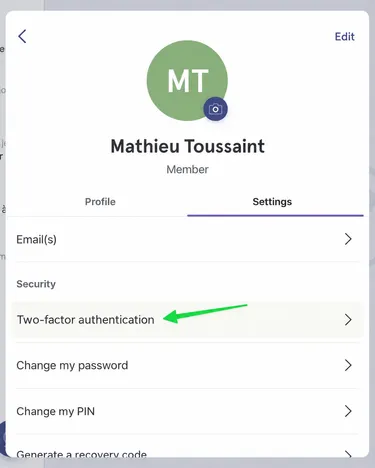
-
By default, your two-factor authentication is sent by email. If you want to receive it by SMS, select this option.
Section titled “By default, your two-factor authentication is sent by email. If you want to receive it by SMS, select this option.”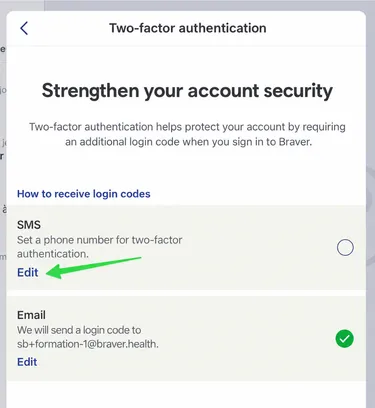
-
If you have no phone number associated with your account, select Add a Phone Number.
Section titled “If you have no phone number associated with your account, select Add a Phone Number.”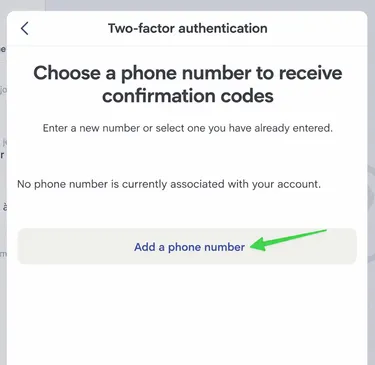
-
Enter your number and select Create.
Section titled “Enter your number and select Create.”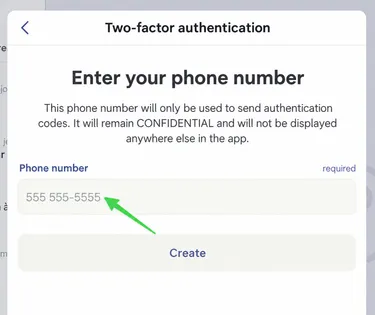
-
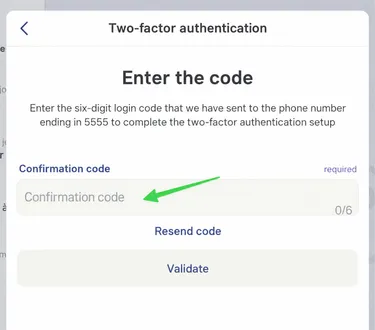
You will then receive a 6-digit confirmation code. Enter it in the appropriate field, then click Validate.
Section titled “You will then receive a 6-digit confirmation code. Enter it in the appropriate field, then click Validate.”