
Create a New Clinical Discussion Thread
Step-by-Step
Section titled “Step-by-Step”- Scenario 1: Add one or more participants
- Scenario 2: Add one or more teams
- Alternative way to create a clinical discussion thread
Scenario 1: Add one or more participants
Section titled “Scenario 1: Add one or more participants”-
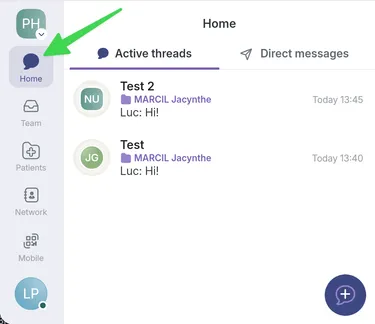
Go to the Home page.
-
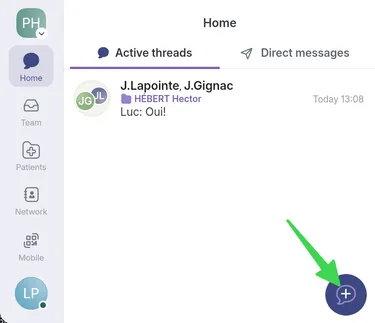
Select the bubble icon at the bottom of the page.
-
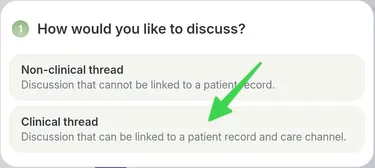
Choose Clinical Thread.
-
Select Choose a Patient.
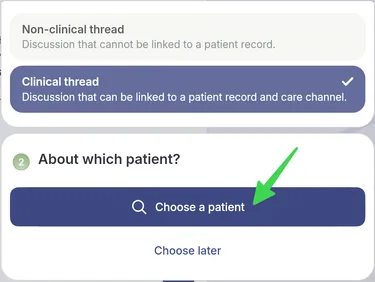
-
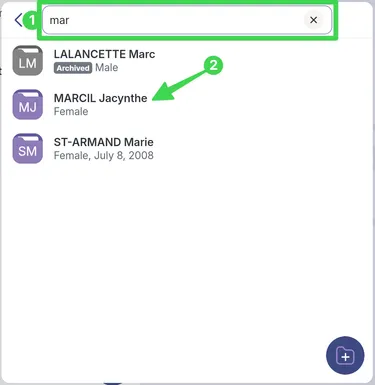
1) Use the search bar to find the relevant patient. 2) Click the desired patient.
-
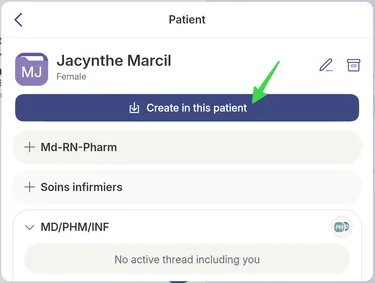
Check the record to make sure it is the correct patient. Then click Create in this patient.
-
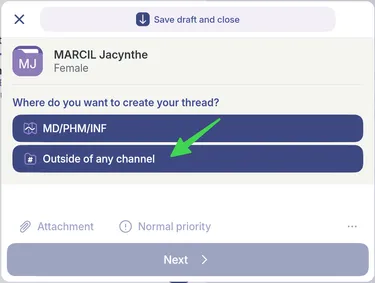
Select an existing care channel or choose Outside of any channel. In this example, Outside of any channel is selected.
-
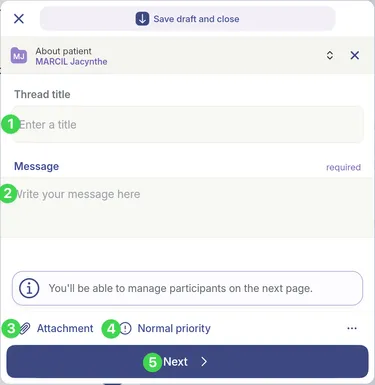
In the composition menu:
- Enter a title for your message.
- Write the message content.
- Select Attachments to add files if needed.
- Set the priority to urgent if needed.
- Click Next to go to the second composition page.
-
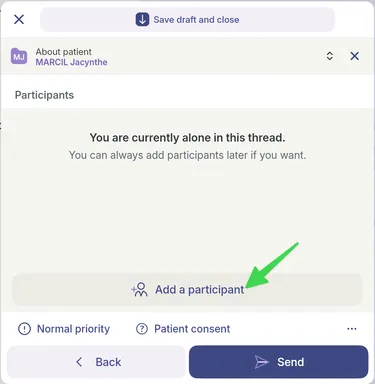
Click Add a participant.
-
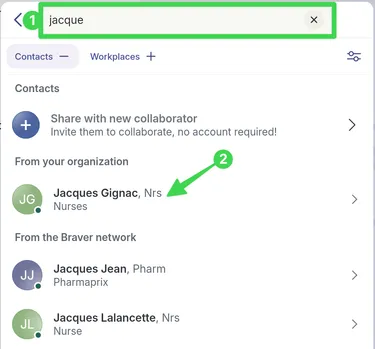
- Use the search bar to find the participants you want.
- Click the name of the person you want to add.
-
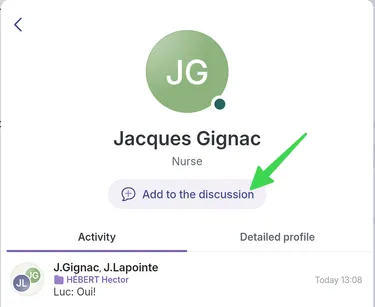
After selecting the participant, click Add to the discussion.
-
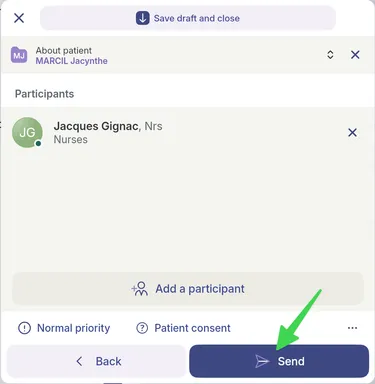
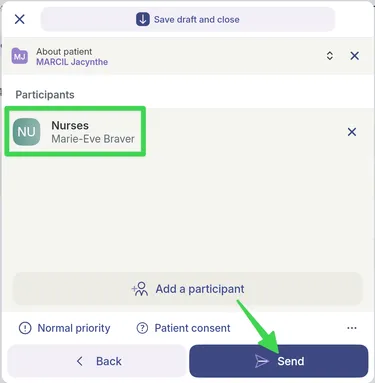
Click Send at the bottom of the page.
Scenario 2: Add one or more teams
Section titled “Scenario 2: Add one or more teams”-
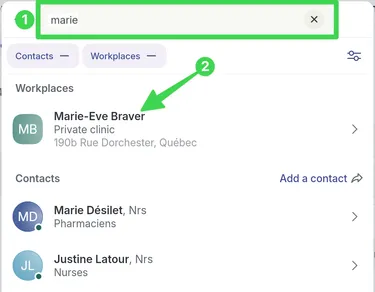
In step 10 of Scenario 1, click the workplace where your team is located:
- Use the search bar to find the desired workplace.
- Click the name of the workplace where the team you want to add is located.
-
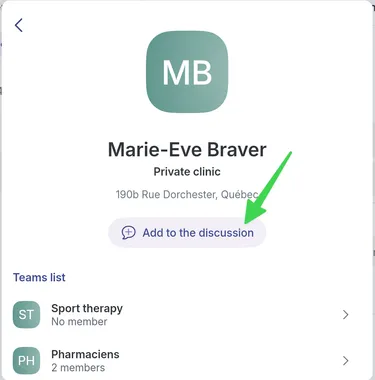
After selecting the workplace, click Add to the discussion.
-
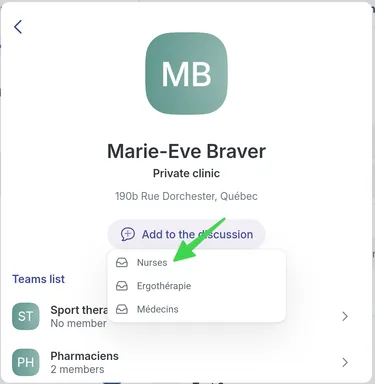
Click the name of the team you want to add.
-
Click Send at the bottom of the page.
Alternative way to create a clinical discussion thread
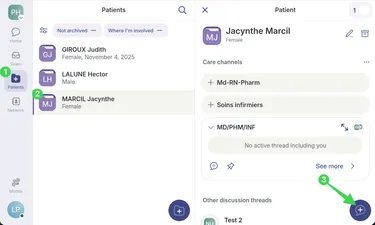
Section titled “Alternative way to create a clinical discussion thread”1) In the Patients page, 2) select a patient and 3) click the discussion bubble icon.