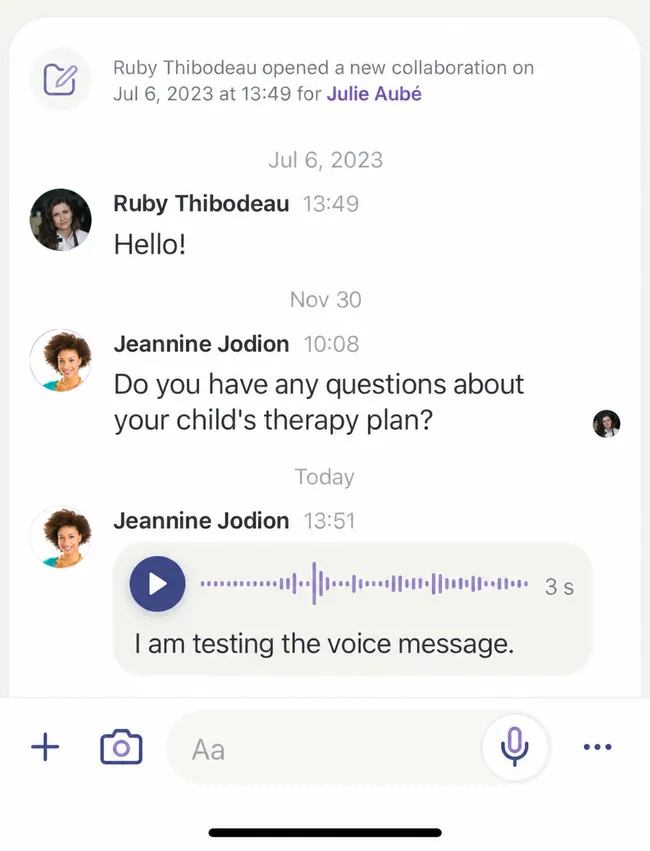

Add Voice Message to Discussion
Step by Step
Section titled “Step by Step”-
Click on the microphone icon to start recording.
Section titled “Click on the microphone icon to start recording.”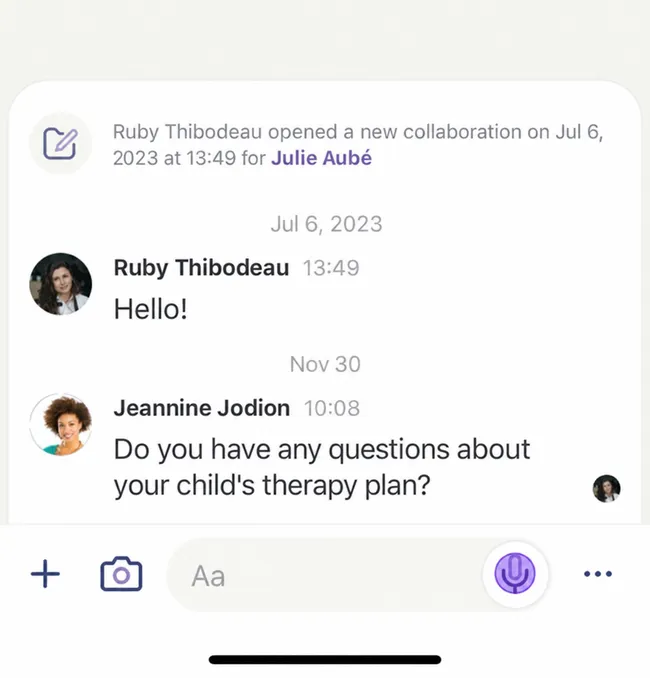
-
When you are ready, click on the microphone icon. You do not need to hold it down.
Section titled “When you are ready, click on the microphone icon. You do not need to hold it down.”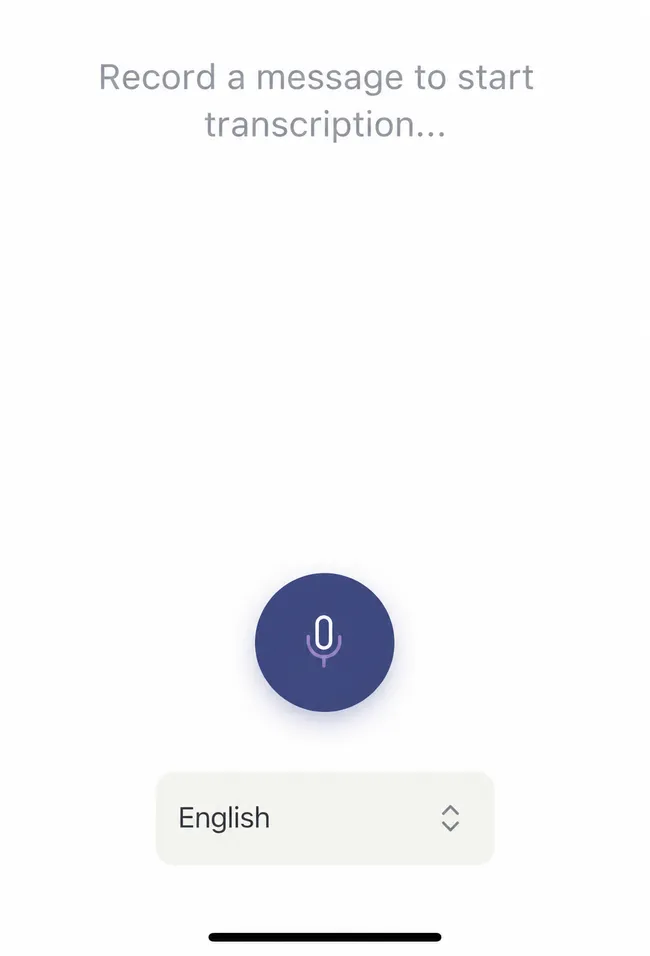
-
Record your message, then click on the orange stop button.
Section titled “Record your message, then click on the orange stop button.”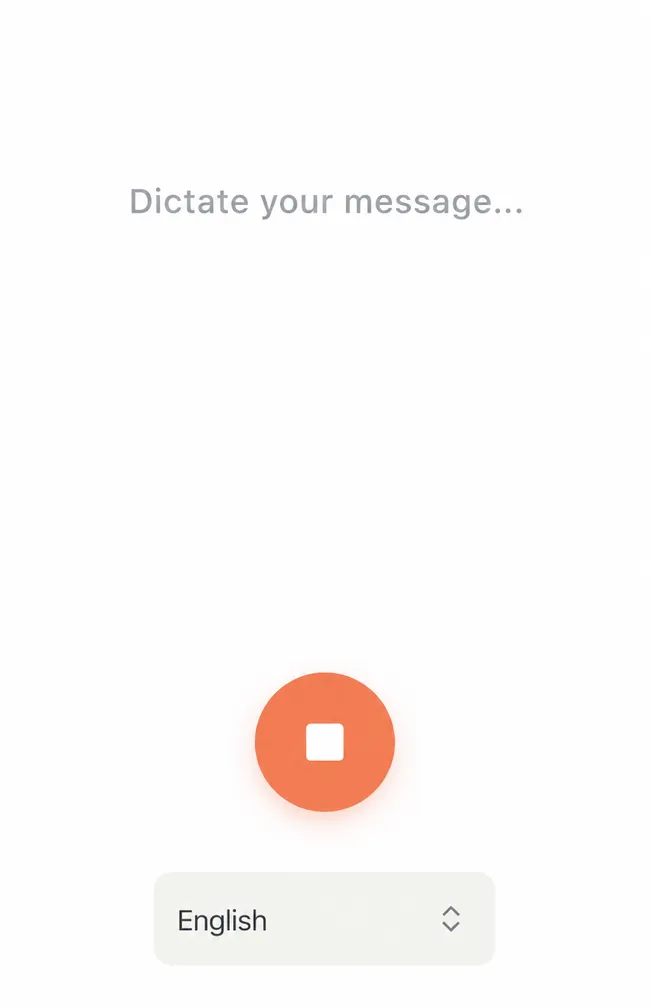
-
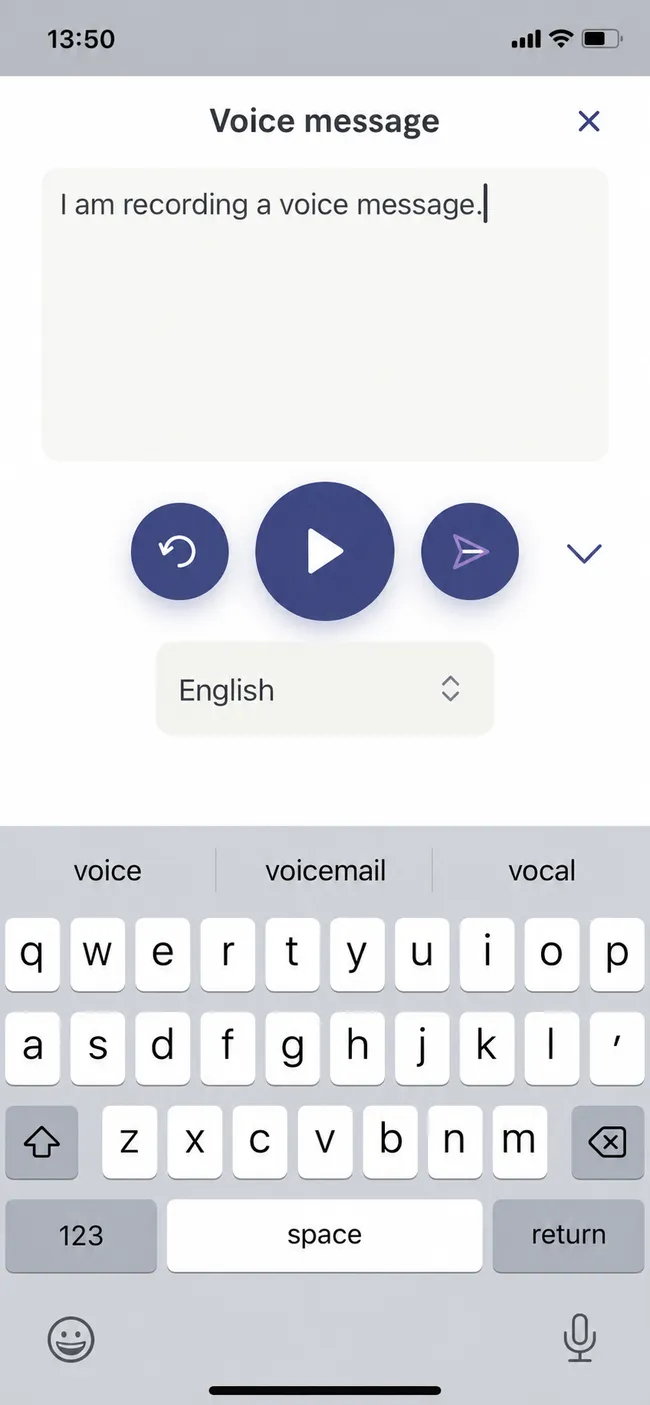
You can now modify the text as you wish:
Section titled “You can now modify the text as you wish:”- If you want to redo your recording, select the backward arrow (on the left).
- To listen to it, press the “Play” icon (in the center).
- To send it, click on the paper airplane (on the right).
-
Your recipient will then be able to listen to or read your transcription.
Section titled “Your recipient will then be able to listen to or read your transcription.”