
Manage Discussion Thread Participants
Step-by-Step Guide to Adding a Participant from Workplace
Section titled “Step-by-Step Guide to Adding a Participant from Workplace”-
Click on the participant circle at the top right of your thread.
Section titled “Click on the participant circle at the top right of your thread.”
-
If you want to add an individual participant, click Add + to the right of Individual Participants.
Section titled “If you want to add an individual participant, click Add + to the right of Individual Participants. ”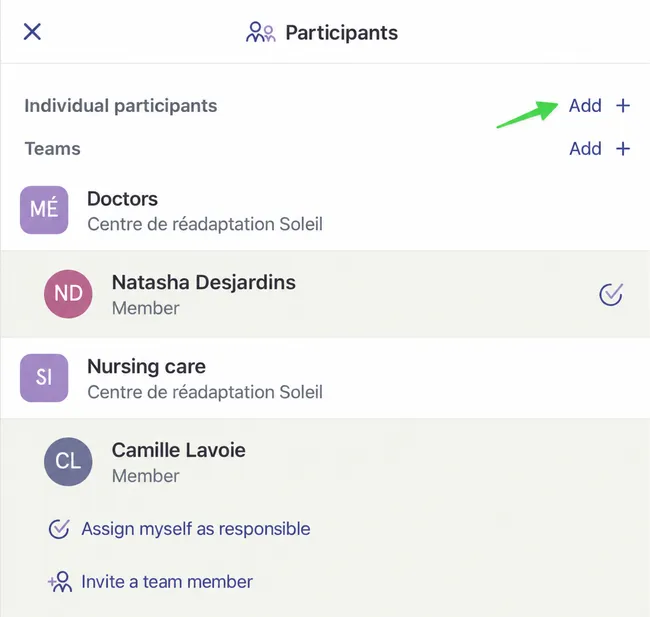
-
You can search for a participant by finding their workplace. Use the search bar at the top if needed. Click on the workplace.
Section titled “You can search for a participant by finding their workplace. Use the search bar at the top if needed. Click on the workplace.”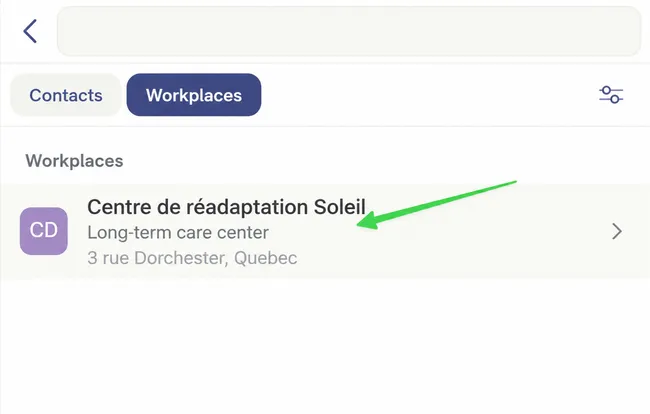
-
Once in the correct workplace, click on the team in which the participant is involved.
Section titled “Once in the correct workplace, click on the team in which the participant is involved.”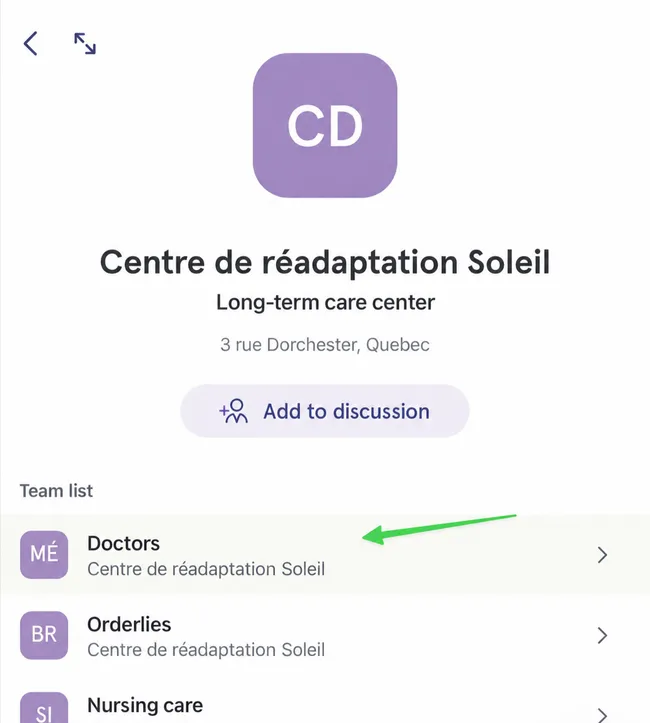
-
Click on the right person.
Section titled “Click on the right person.”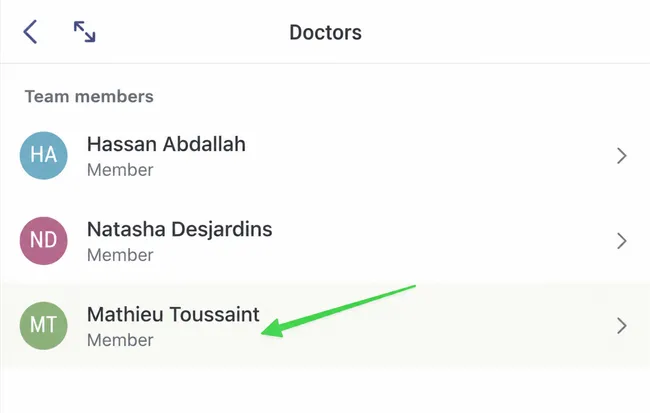
-
Click Add to Discussion.
Section titled “Click Add to Discussion.”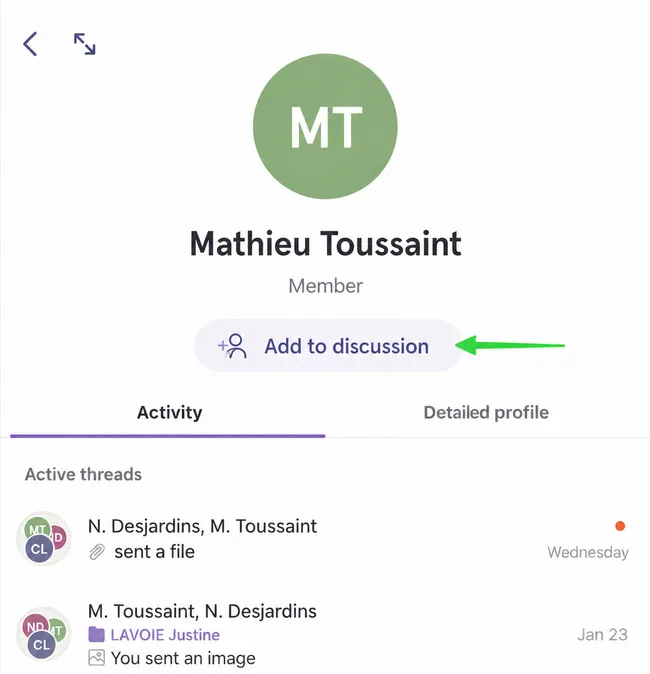
-
The new participant is now added and is classified under the correct team. If there is an envelope next to their name, it means they have not yet joined the discussion.
Section titled “The new participant is now added and is classified under the correct team. If there is an envelope next to their name, it means they have not yet joined the discussion.”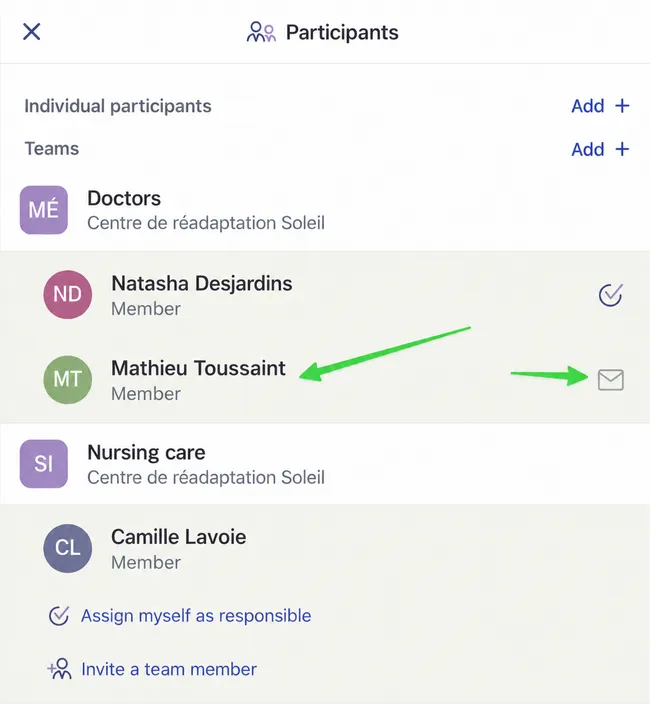
Step-by-Step Guide to Adding a Participant by Searching Their Name
Section titled “Step-by-Step Guide to Adding a Participant by Searching Their Name”-
Click on the participant circle at the top right of your thread.
Section titled “Click on the participant circle at the top right of your thread.” -
You can use the search bar to look for a specific contact.
Section titled “You can use the search bar to look for a specific contact.”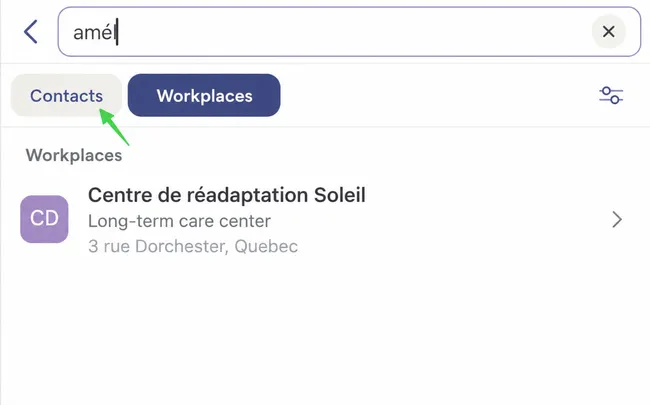
-
Select the participant you want to add to the discussion thread.
Section titled “Select the participant you want to add to the discussion thread.”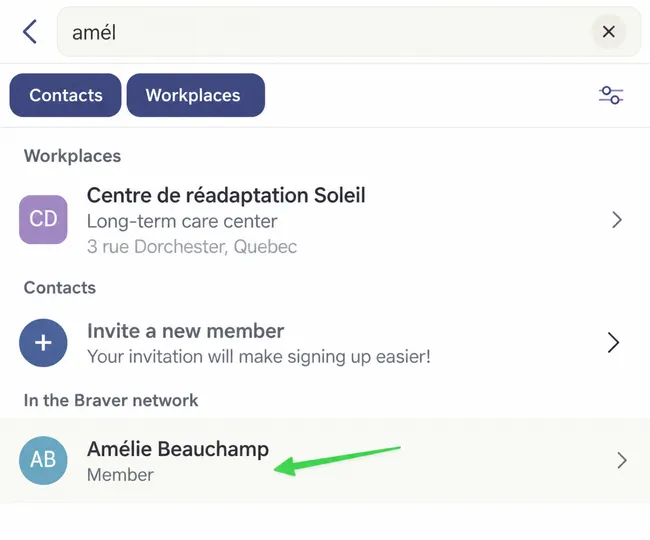
-
Click Add to Discussion.
Section titled “Click Add to Discussion.”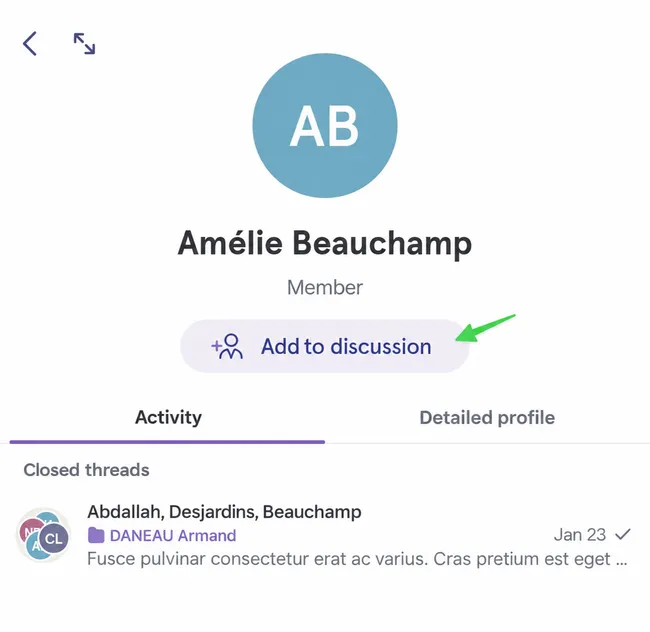
Step-by-Step Guide to Adding a Team
Section titled “Step-by-Step Guide to Adding a Team”-
Click on the participant circle at the top right of your thread.
Section titled “Click on the participant circle at the top right of your thread.” -
To add an entire team so that the message lands in their triage box, click Add + near Teams.
Section titled “To add an entire team so that the message lands in their triage box, click Add + near Teams. ” -
Select the workplace where the team is located.
Section titled “Select the workplace where the team is located.”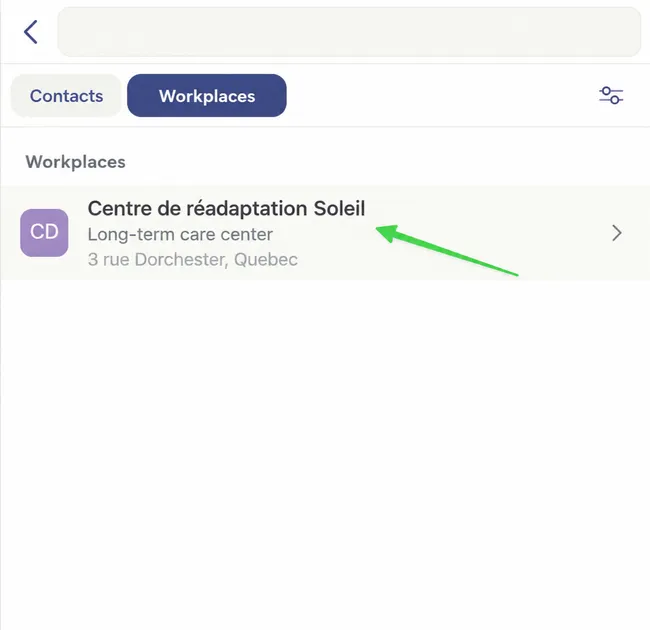
-
Under the workplace, click Add to Discussion.
Section titled “Under the workplace, click Add to Discussion.”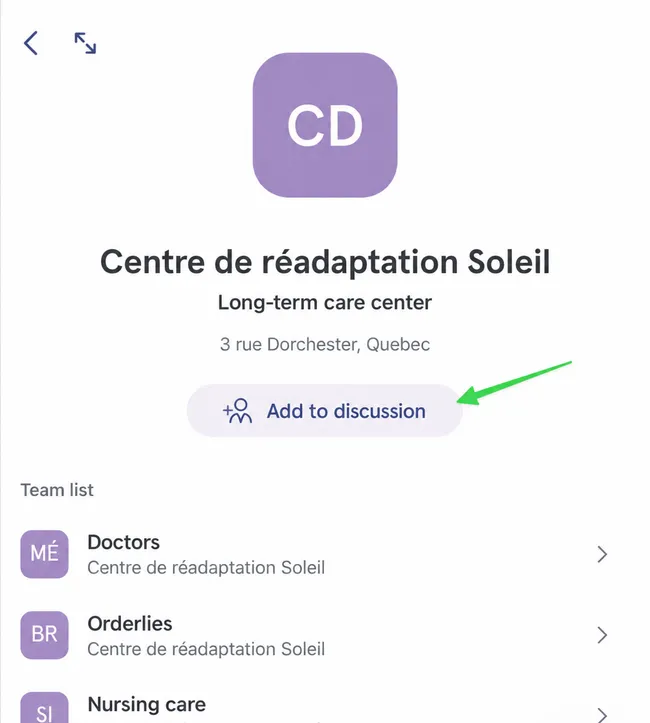
-
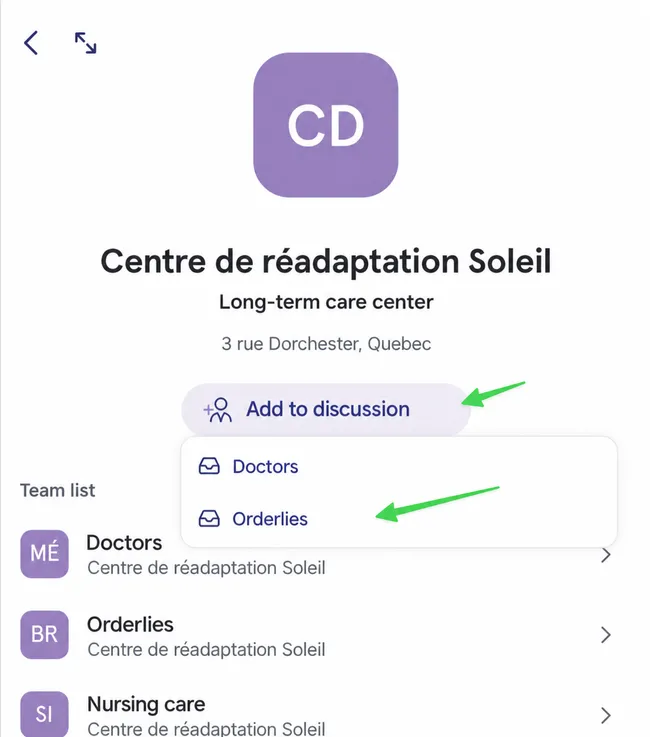
At this point, you are offered the teams you can add to the discussion. Select the team of your choice to add it.
Section titled “At this point, you are offered the teams you can add to the discussion. Select the team of your choice to add it.”