
Invite Patient or Caregiver to Join Braver
Step-by-Step Guide
Section titled “Step-by-Step Guide”-
Start by accessing the patient’s file.
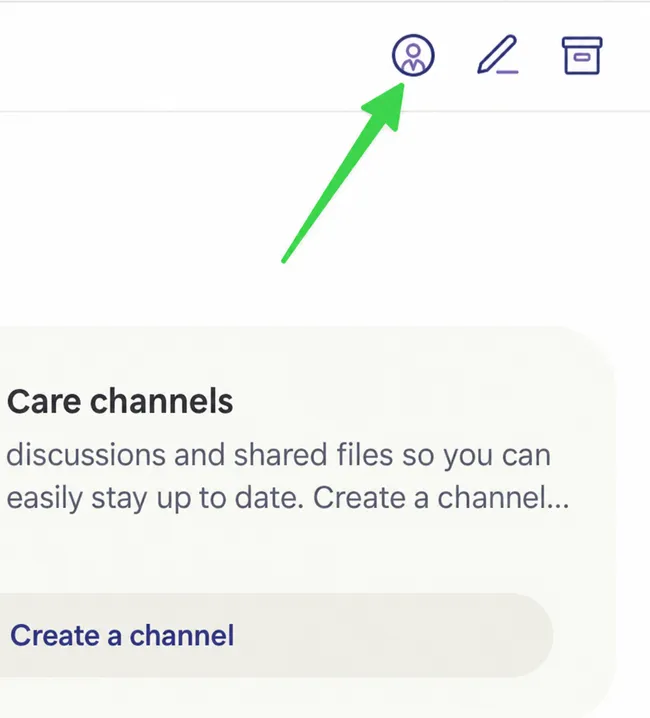
Section titled “Start by accessing the patient’s file.”Then click on the character icon at the top right of the file.
-
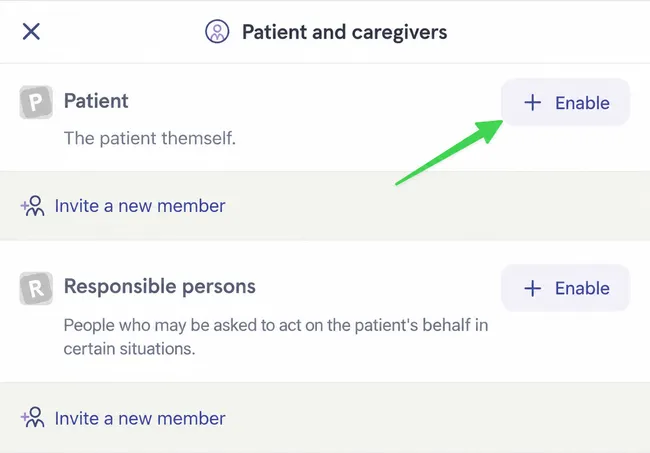
At this point, you must activate the presence of the patient, responsible persons (caregivers), or observers.
Section titled “At this point, you must activate the presence of the patient, responsible persons (caregivers), or observers.”In the example below, the presence of the patient is activated.
-
You can now invite the patient. Click on Invite New Member under the Patient section.
Section titled “You can now invite the patient. Click on Invite New Member under the Patient section.”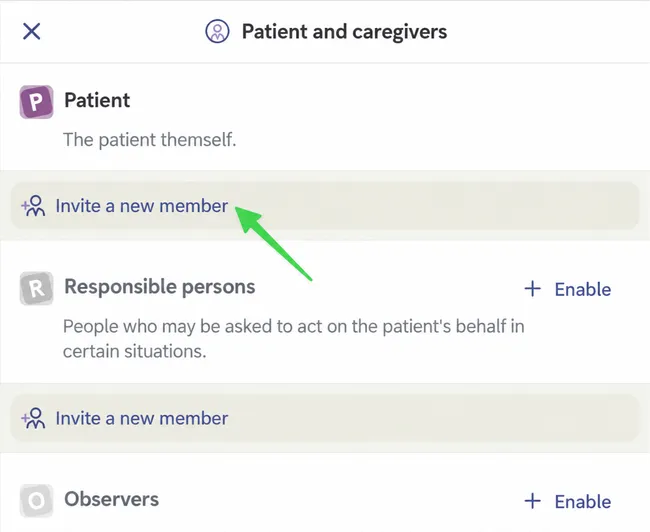
-
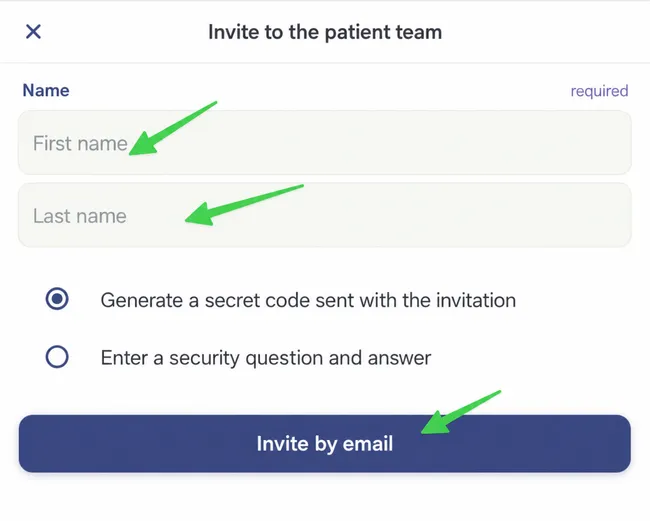
Fill in the requested information.
Section titled “Fill in the requested information.”Once the form is completed, click on Invite by Email.
-
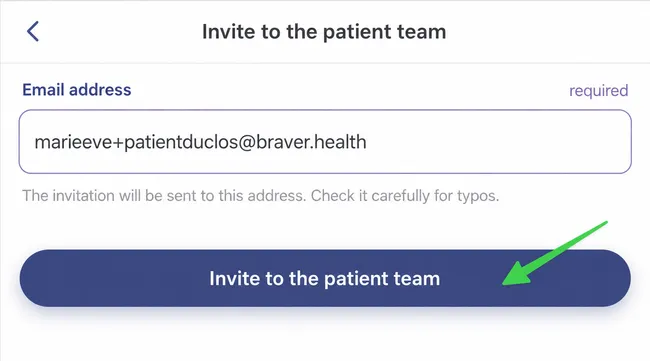
Enter the email address of the patient (or caregiver).
Section titled “Enter the email address of the patient (or caregiver).”Then select Invite to Patient Team.
-
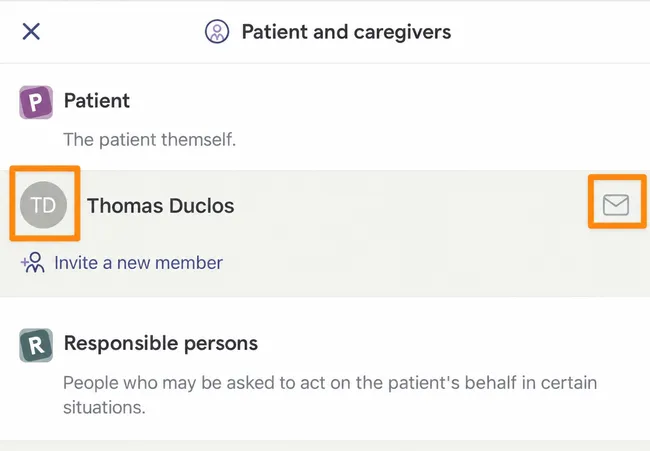
There is an envelope next to the patient’s name and the dot in front of the name is grayed out, which indicates that they have not yet accepted the invitation.
Section titled “There is an envelope next to the patient’s name and the dot in front of the name is grayed out, which indicates that they have not yet accepted the invitation.”Repeat the same actions if you want to invite other responsible persons or observers to the patient’s file.
-
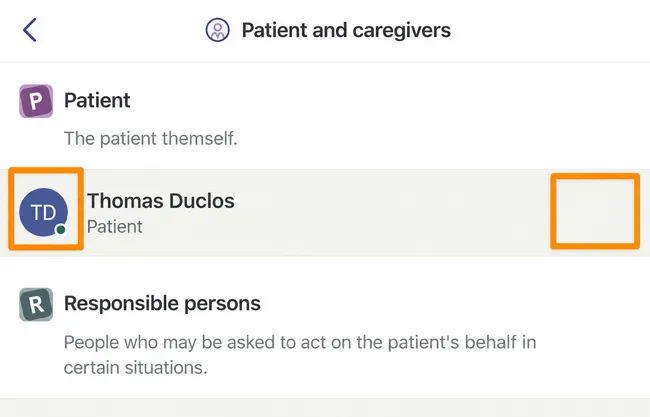
When they have joined Braver, the envelope will have disappeared and their avatar will be colored, as shown in the example below.
Section titled “When they have joined Braver, the envelope will have disappeared and their avatar will be colored, as shown in the example below.”