
Filter Patient Files
1. Filter patient records
Section titled “1. Filter patient records”Step-by-step
Section titled “Step-by-step”-
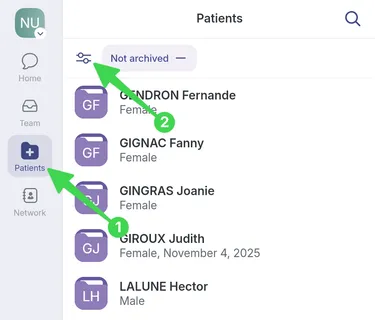
Go to the Patients page, then select Filters.
-
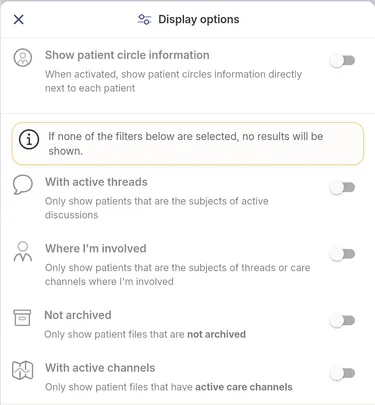
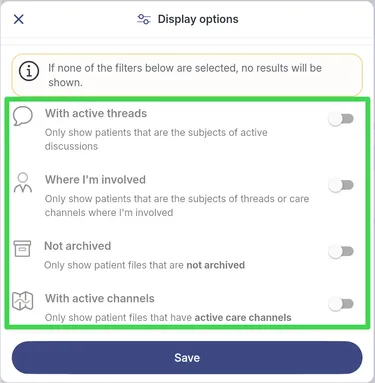
Choose one or more of those options.
-
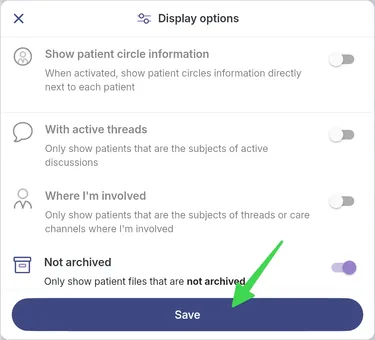
Click Save.
Use Cases
Section titled “Use Cases”- To quickly identify patients where you are part of an active discussion, select those options:
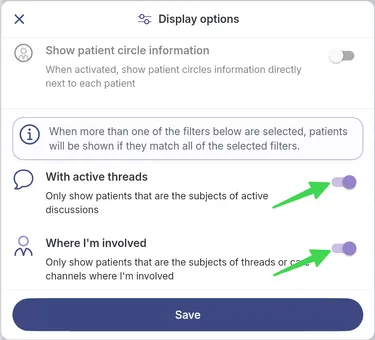
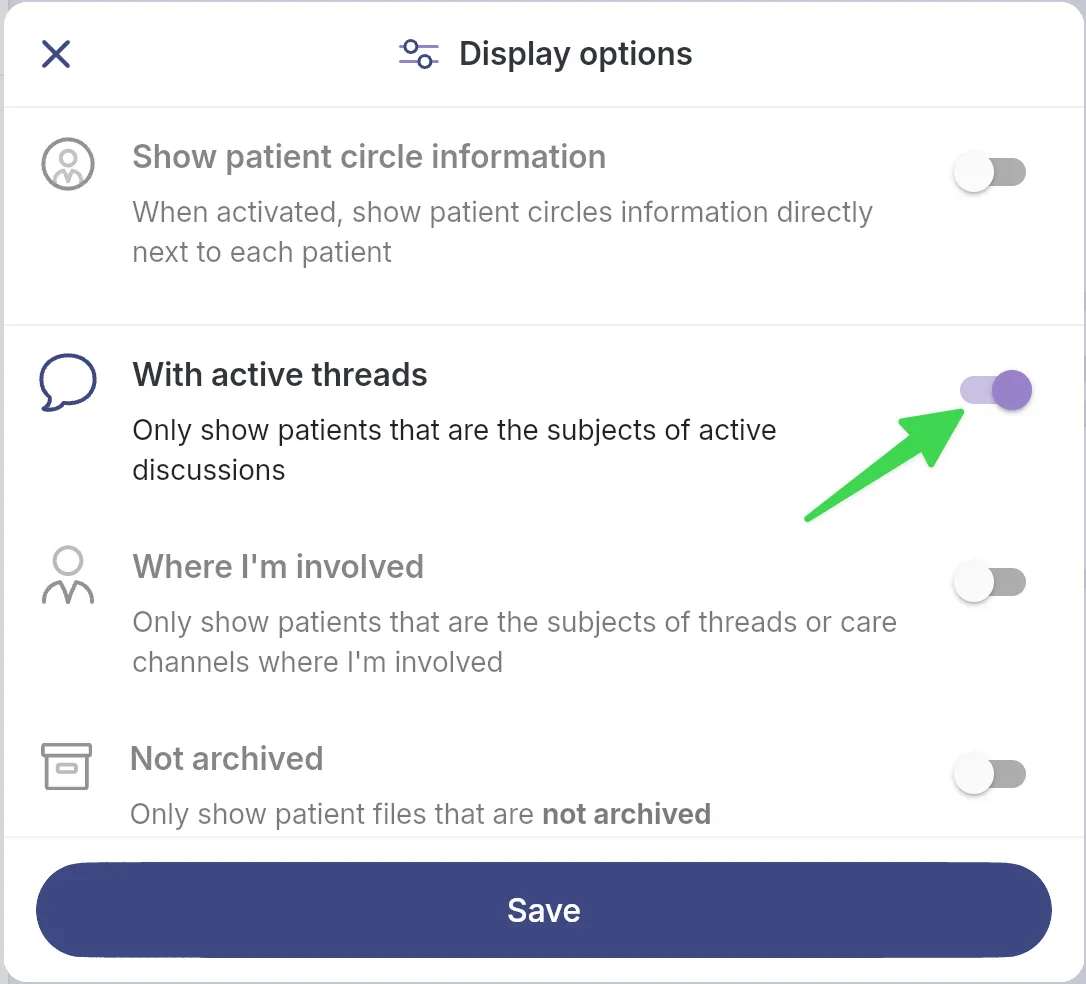
- If you are covering for a teammate and want to see ongoing active discussions, select this option:
2. View the invitation process status
Section titled “2. View the invitation process status”Step-by-step
Section titled “Step-by-step”-
1) Go to the Patients page, then 2) select Filters.
-
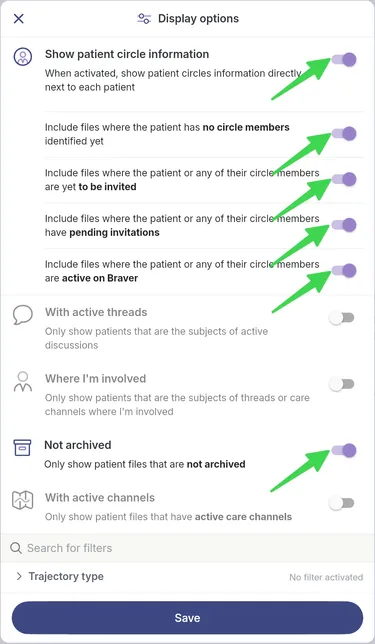
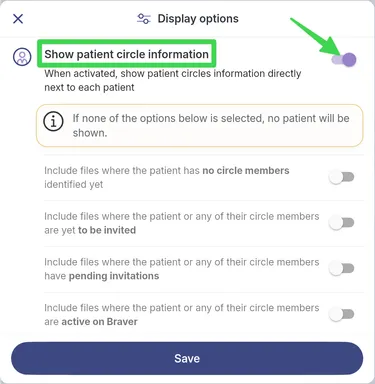
Turn on Show the patient’s circle to access the dropdown.
-
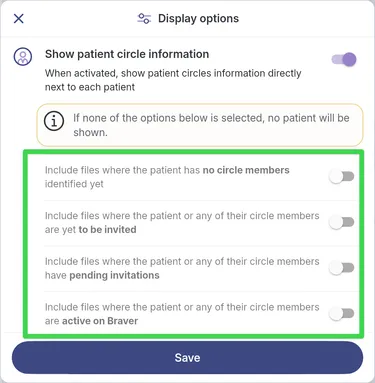
Select one or more of those options:
-
Then select a filter to display the patients you are looking for:
-
Click Save.
Use Cases
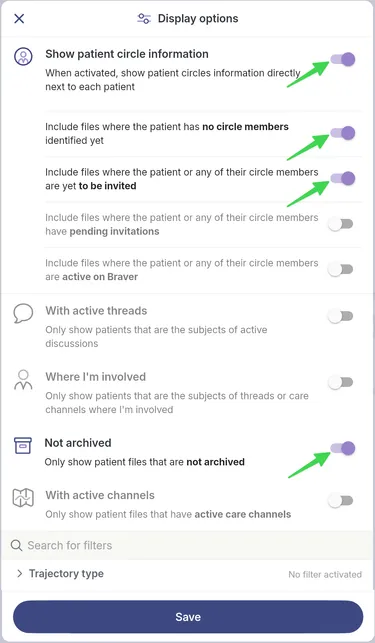
Section titled “Use Cases”- To quickly identify which members have not been invited or whose invitation information is incomplete, select those options:
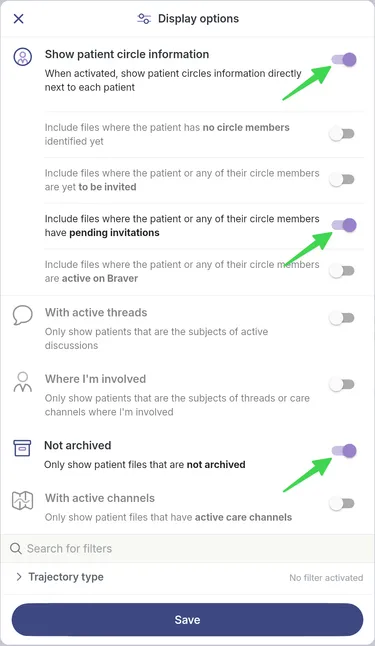
- To identify which members have not accepted their invitation, select the relevant options.
- To get an overview of invitation statuses, select the relevant options.